Research shouldn’t feel like digging through a maze of tabs and PDFs. As a developer, you need clear answers fast. That’s where AI research tools come in.
They help you find the right information, understand complex topics, and spot useful patterns without wasting hours.
Whether you're learning something new or validating an idea, this guide covers the best AI tools to help you research smarter and build faster.
Let’s make deep research simple and actually useful.
Research faster, build smarter. Join Index.dev to work on global projects where deep thinking and the right tools really matter.
| Tool | Best For | Key Features | Limitations | Pricing |
| Perplexity AI | Fast, citation-backed answers | Real-time web search, source links, Focus Mode (Pro), no login needed | Limited filtering, Focus Mode not always available | Free / Pro: $20/month |
| Geekflare Connect | Multi-model comparison and team collaboration | BYOK multi-model chat, prompt library with option for custom prompts, simultaneous chat with 3 models side-by-side, RAG, web search. | You need to manage your API keys with the model provider. | Free, Business Plan at $15/month |
| ChatGPT | Deep exploration, explanation, and synthesis | GPT-4, file upload, web browsing, conversation memory | GPT-3.5 lacks features, and no citations without browsing | Free / Plus: $20/mo / Pro: $200/mo |
| Elicit | Academic research and paper comparison | Literature review table, custom columns, semantic summaries | Academic-only focus, less effective on recent or niche papers | Free / Pro: from $10–$65/month |
| Consensus | Fact-checking using real scientific evidence | Yes/No/Depends format, summary of paper agreement, simple UX | No code/contextual insights, limited filtering | Free / Pro: $11.99/month |
| Scite | Validating claims via citation types | Smart Citations (supporting/contrasting), BibTeX export, journal filters | Learning curve, limited access on the free plan | Free (7 days) / Pro: ₹700/month |
| Research Rabbit | Mapping research networks visually | Citation maps, paper timelines, author graphs, and collection tracking | No summaries or citation strength scoring | Free |
What exactly is the deep research we're referring to?
Deep research means digging deep into a topic to understand how it truly works.
As a developer, you don’t just search for quick answers; you explore trusted sources like research papers, technical blogs, and real-world case studies.
You look at how different people solved similar problems, what tools they used, and what results they got. You find patterns, compare ideas, and think critically. This kind of analytical approach is quite similar to how Creative Analytics helps uncover patterns and insights across creative or technical work.
Deep research isn't about reading more; it's about learning smarter. It gives you a strong foundation to create, test, and improve your projects with confidence.
What are the types of deep research enabled by AI tools?
1. Source Aggregation and Summarization
AI excels at cutting through noise. Instead of switching between a dozen blogs, docs, and forums, you get the key insights in one summary. This is especially helpful when comparing tools or understanding a concept without wasting time on repetitive or low-quality sources.
2. Literature Review and Citation Analysis
Not all papers are equal. AI tools let you trace how influential a study is, who cited it, whether they agreed, and what research it led to. This context matters when you're relying on academic work to make technical decisions or justify an approach.
3. Qualitative Data Analysis
Unstructured feedback often holds the most value. AI reads thousands of user reviews, GitHub issues, or support chats and distills what users care about most. For developers, this turns vague sentiment into clear action items like bug fixes or feature priorities. Similarly, AI note taker tools can process meeting transcripts, interview recordings, and brainstorming sessions to extract actionable insights.
4. Exploratory Data Discovery
You don’t always know what you’re looking for. Exploratory tools uncover unexpected connections between topics, datasets, or authors, without needing a specific query. They’re useful for spotting trends, gaps, or areas worth diving deeper into when entering a new field.
5. Predictive and Analytical Synthesis
Smart planning needs more than raw data. These tools analyze patterns, timelines, and performance history to suggest what’s likely to work best. Whether it's choosing between architectures or predicting long-term tech adoption, AI can support high-stakes decisions with real evidence.
Explore More: ChatGPT vs Perplexity
7 handpicked AI tools for deep research
1. Perplexity AI
What it does
Perplexity AI is an AI-powered research assistant that provides concise, cited answers to your queries using real-time web sources. It's ideal for academic research, competitive analysis, or content gathering, delivering accurate summaries with traceable links to sources.
How to Use It (Mini Walkthrough)
Step 1: Go to Perplexity
For basic usage, no sign-up is required. You’re immediately presented with a search bar.
However, you can use your Google account to sign up for free, like I did.
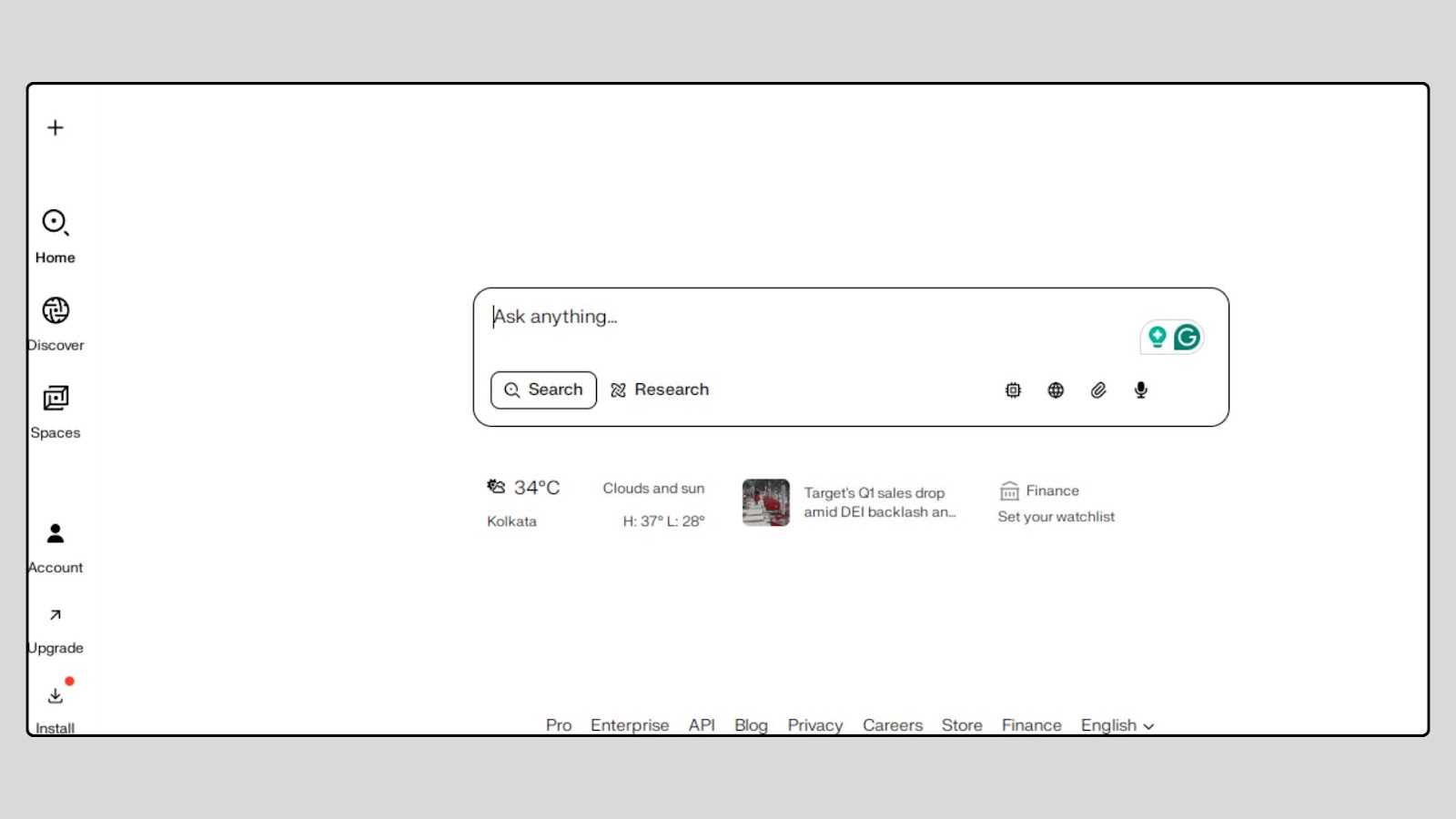
Step 2: Type a complex research query
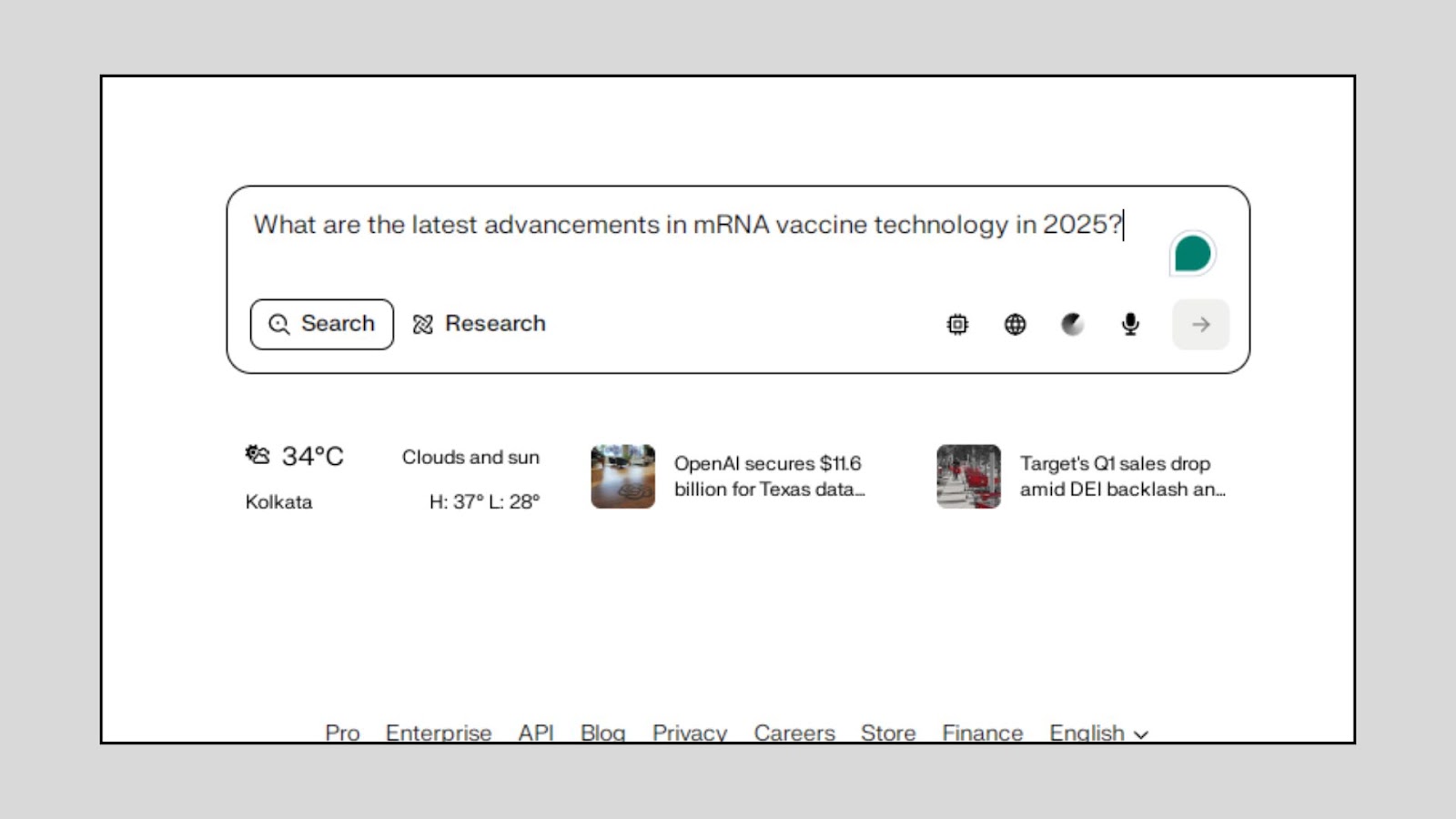
In the search box, type a full and clear question to continue your research.
For example:
“What are the latest advancements in mRNA vaccine technology in 2026?”
The tool works best when your query is detailed and focused on one topic.
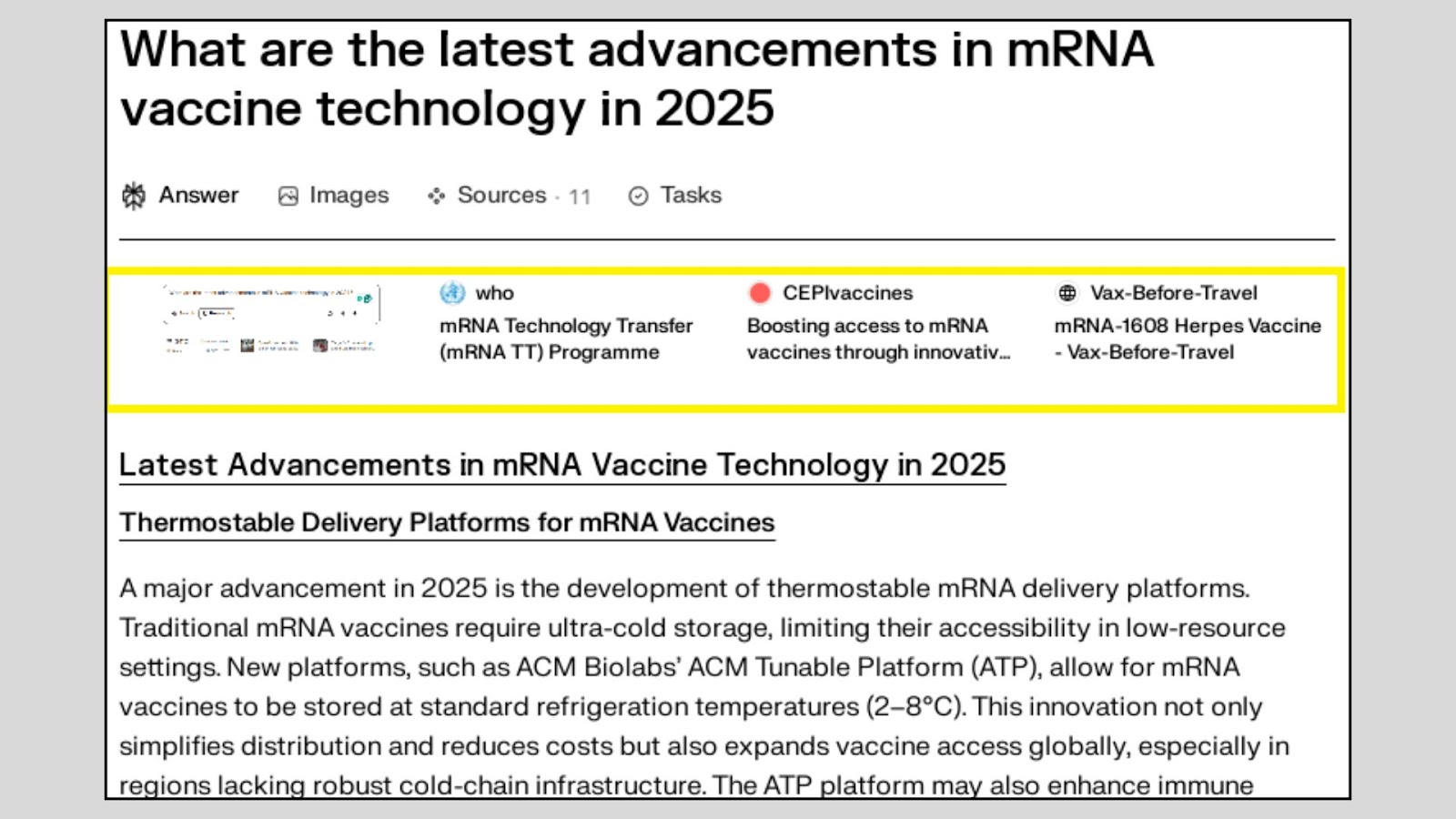
Step 3: Review the AI-generated answer
Once you press enter, Perplexity will give you a short answer with links to the websites it used. These sources are shown right next to the sentences so that you can click and check the original articles. This ensures traceability.
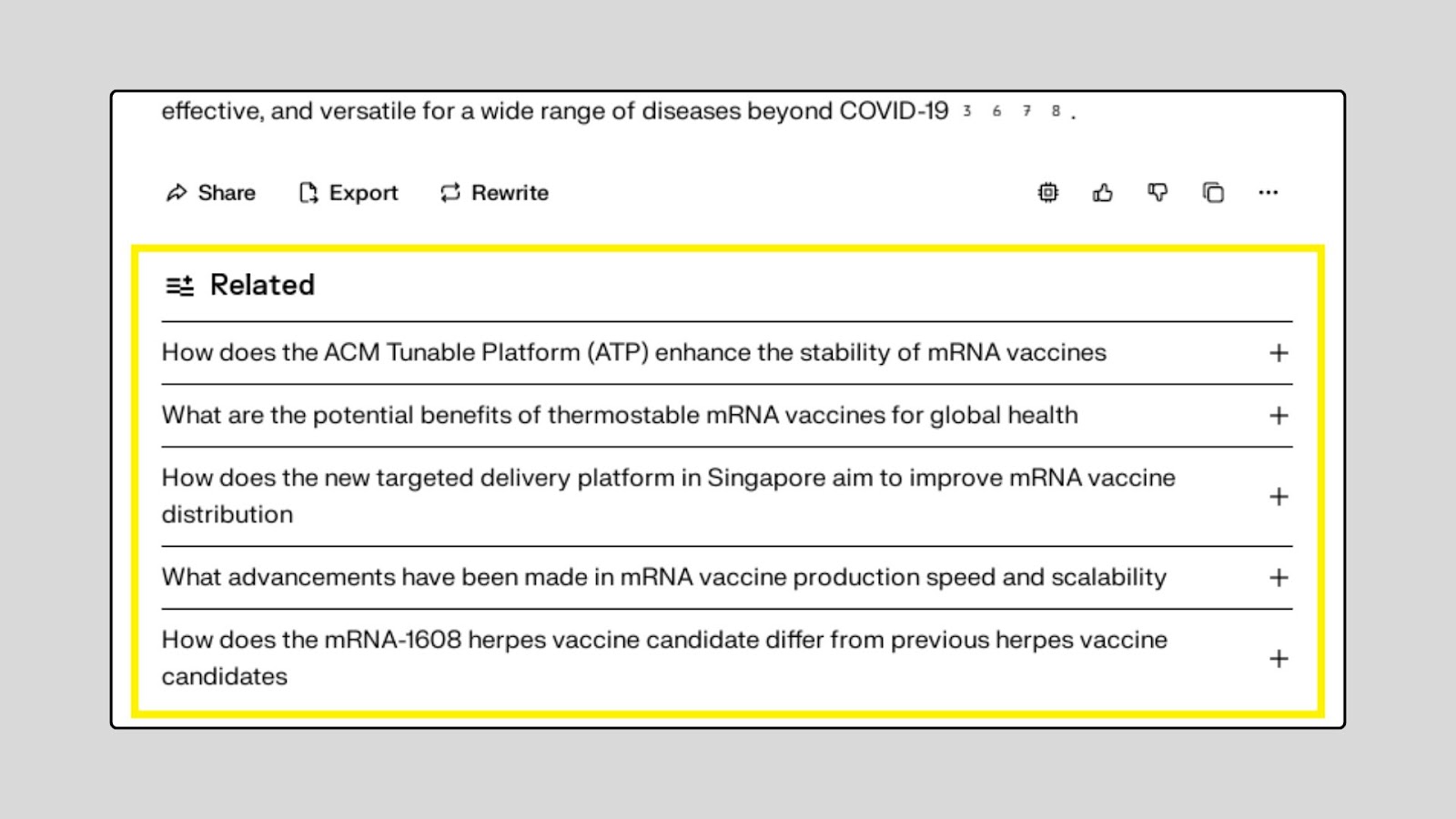
Step 4: Explore related questions
Under the main result, you’ll see related questions that help you dig deeper. These help you explore related topics without starting a new search, making your research faster and more complete.
Step 5: Use "Focus Mode" for multi-source research
Sometimes, after entering a complex question, you’ll see a “Focus” button near the top-right of the answer box. Clicking this opens Focus Mode, where Perplexity organizes information into sections with grouped sources.
This view helps you understand bigger topics like “advancements in mRNA vaccines” by breaking them down into subtopics from multiple trusted websites. However, it is available with the pro version. Similarly, when exploring names for projects, products, or social handles, a username generator can help you quickly check availability, compare options, and ensure consistency across platforms.
What I liked
- Real-time, citation-rich summaries
- No login required for casual use
- "Focus Mode" is powerful for deep research
- Clean, minimal UI for distraction-free reading
- Helps quickly verify facts and sources
What I disliked
- Limited customization or filtering of source types
- Can occasionally return redundant sources
- Focus Mode is not always available for niche topics
Pricing
- Free Tier: Unlimited basic searches
- Pro Plan: $20/month. It includes GPT-5.1 access, the in-house Sonar models, enhanced answer generation, and more customization options.
Who should use Perplexity AI?
- Researchers need fast, citation-backed answers.
- Content writers or bloggers doing competitive/topic research
- Students working on essays or literature reviews
- Founders or marketers needing quick summaries of trends
Final Verdict
Perplexity AI is a solid research companion for developers who want fast, source-backed answers without digging through forums or academic papers. Whether you're exploring new frameworks, comparing tools, or validating tech trends, it speeds up your research workflow.
The key takeaway? It won’t replace hands-on testing, but it’s perfect for quick context, citations, and cutting through noise.
2. Geekflare Connect
What it does
Geekflare Connect is a BYOK (Bring Your Own Keys) AI workspace. For research, it allows you to access research-focused models like GPT-5 Deep Research and Perplexity Sonar Deep Research in a single interface.
It supports chatting with up to 3 models at a time, file analysis, and real-time web search integration. When you don’t need advanced reasoning, you can try lite models like Gemini 2.5 Flash or DeepSeek-V3.2.
How to Use It (Mini Walkthrough)
Step 1: Go to Geekflare Connect
Sign up as a new user.
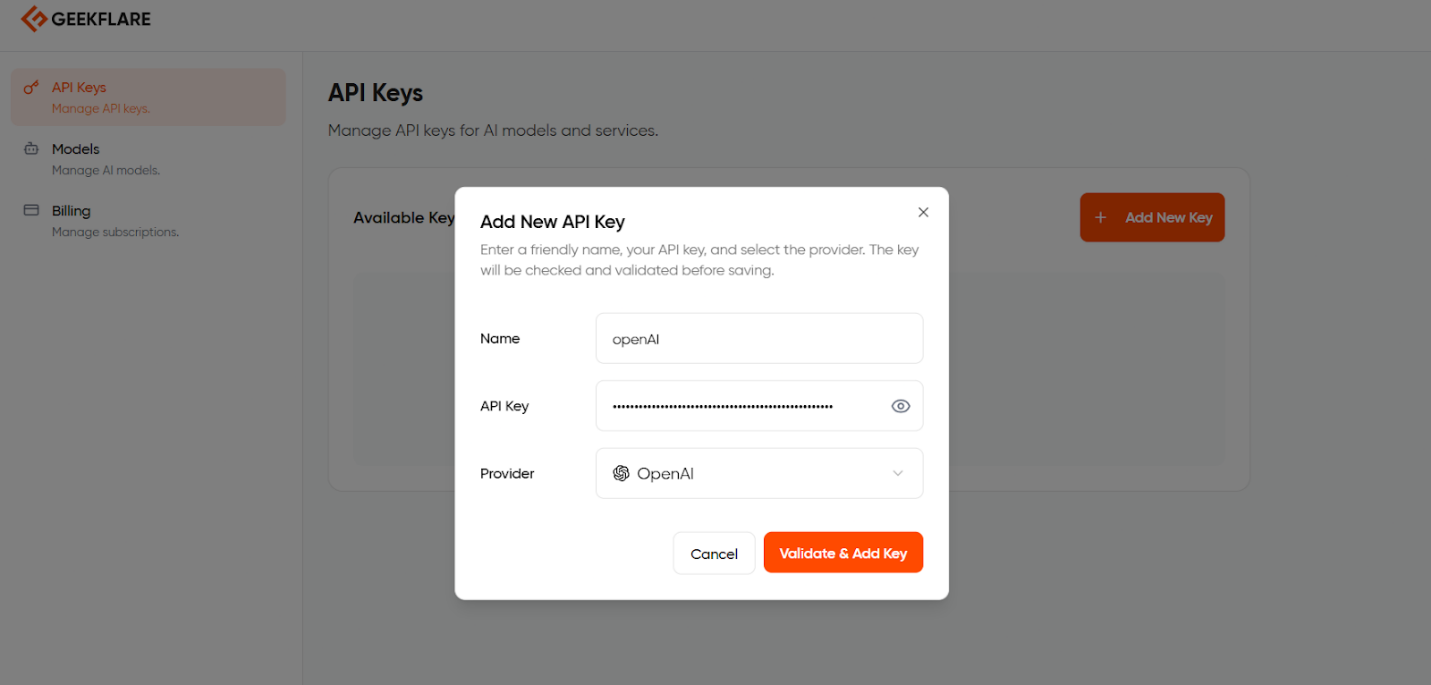
Step 2: Add API key
You can start using the Gia model for basic research or add API keys of your preferred models.
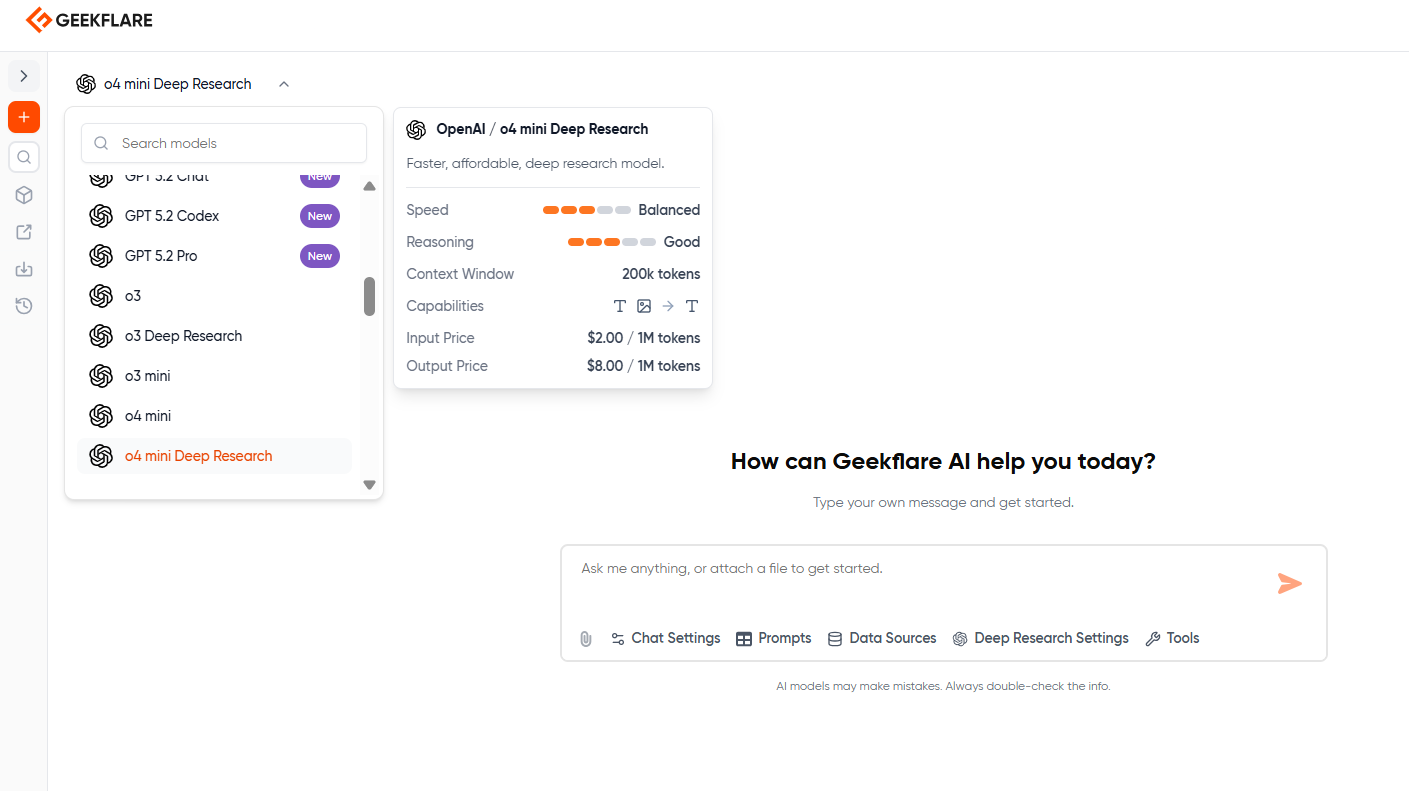
Step 3: Select the model from the drop-down list.
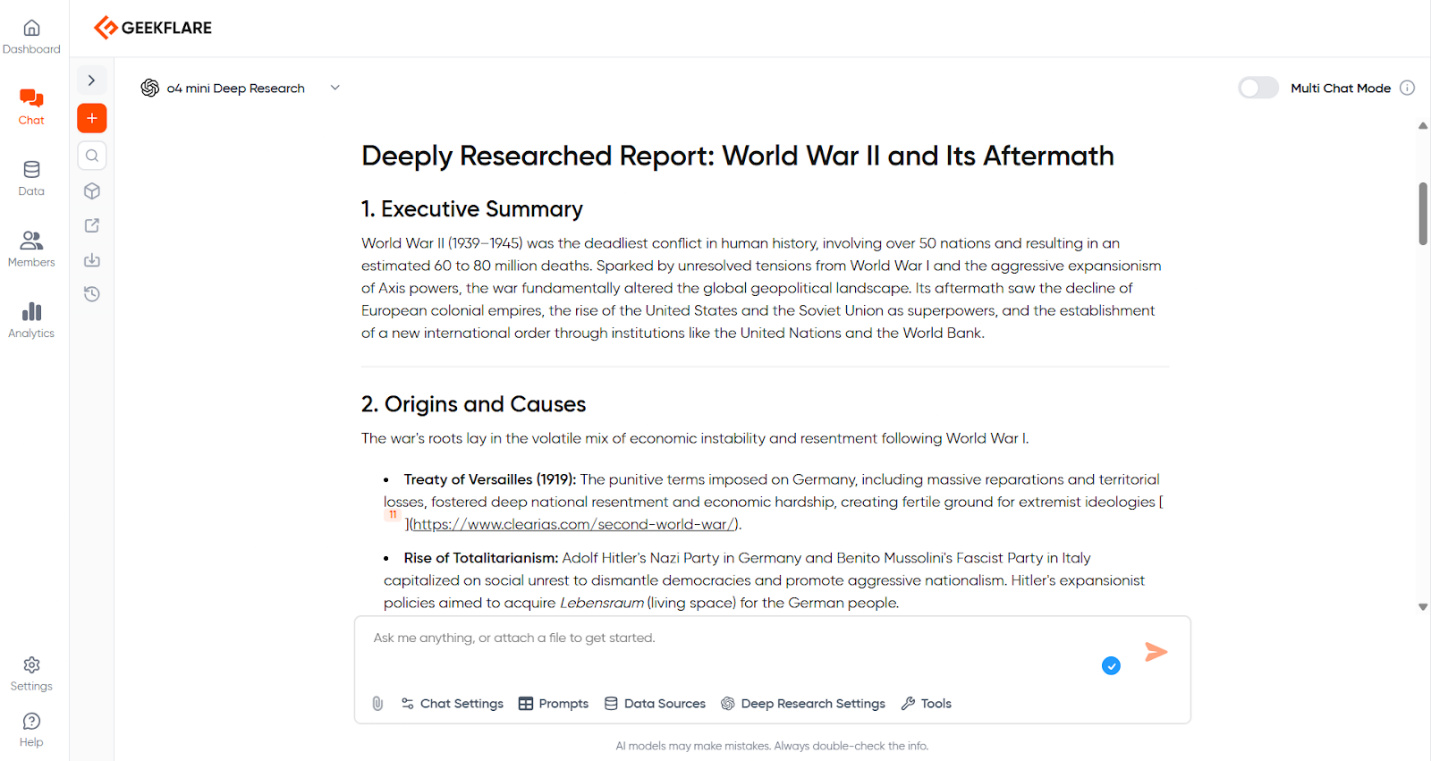
Step 4: Type your question into the prompt box and press ‘Go’.
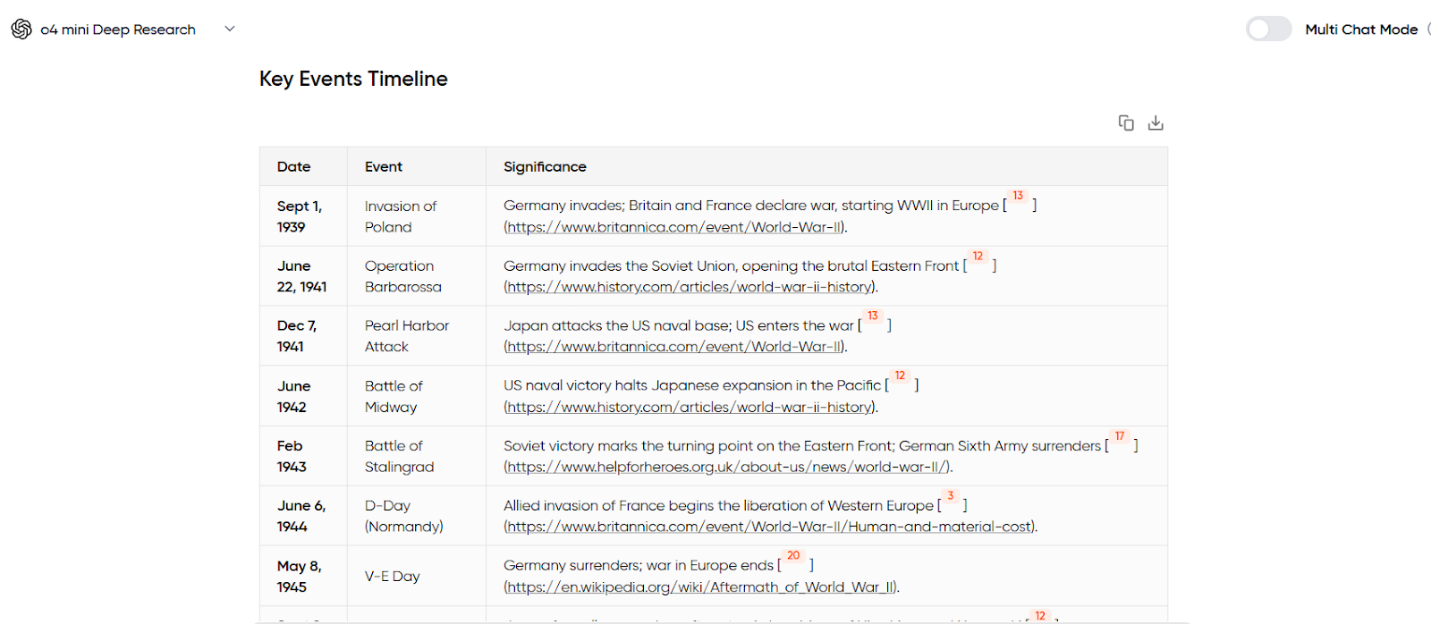
The model performs its research and responds with a detailed, formatted answer with citations.
Additional Features
Upload research documents: Click the attachments button to upload PDFs, TXT files, or images, especially after you edit your PDF files for free to organize or refine the content before analysis.
RAG: You can upload your documents to the knowledge base and query that. It is like chatting with your PDFs and docs.
Organize your findings: Save your chats into specific Projects within your Workspace. If you are collaborating, you can share a view-only public link to your chat, or share it with specific people in your organization.
What I liked
- Multi-chat makes it easy to spot hallucinations across different models. It also helps us fact-check when multiple models return the same response.
- Access to advanced reasoning and deep research models like GPT-5 Deep Research, Claude Sonnet 4.6, and Sonar Deep Research.
- Workspaces and Projects keep research results strictly organized.
- RAG feature to upload my private data to query.
What I disliked
- Requires you to source and manage your own API keys from providers.
- Shared conversations need to be forked and continued separately, unless they are within a project folder.
Pricing
Free Plan
Business Plan: $15/month, 5 seats included, unlimited workspaces.
(Note: You pay for the platform subscription, plus the direct API usage costs to your chosen model providers).
Who should use Geekflare Connect?
- Researchers who need to use multiple LLMs.
- Teams requiring a centralized workspace for collaborative AI research.
- Decision makers who want to cross-reference facts across multiple top-tier models.
- Businesses that aim to reduce AI spending.
Final Verdict
Geekflare Connect is the ideal aggregator for AI power users. Instead of paying for multiple separate AI subscriptions, you bring your own keys and get a collaborative environment to run parallel chats with the best deep research models.
The key takeaway?
Teams should use Geekflare Connect when they need to research and cross-verify answers across multiple models, analyze large PDFs, and pull real-time data from the Internet.
3. ChatGPT
What it does
ChatGPT is an AI chatbot that helps you understand complex topics, summarize content, and generate clear explanations using natural language. For research, it can break down hard concepts, brainstorm ideas, or simulate expert advice, especially when you use GPT-5 or the deeper-reasoning GPT-5.1 with browsing.
How to Use It (Mini Walkthrough)
Step 1: Go to ChatGPT
Go to https://chat.openai.com. If you don’t have an account, sign up for free.
You can use GPT-5 (with daily limits) without paying, but GPT-5.1 (with the Plus or Pro plan) provides better research features like file upload, web browsing, and Deep Research.
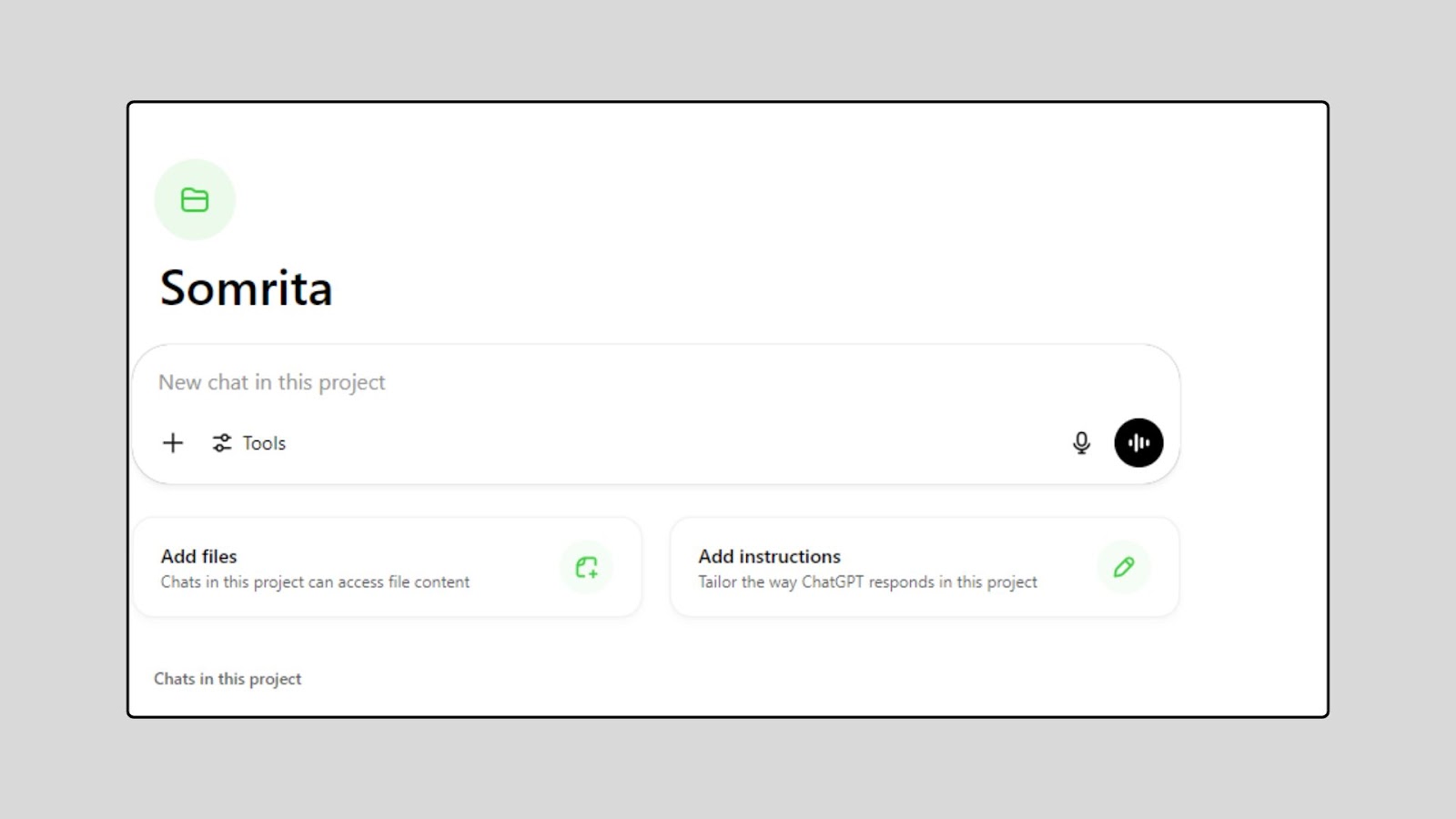
Step 2: Ask a specific research question
Use the chat input to ask something specific, like:
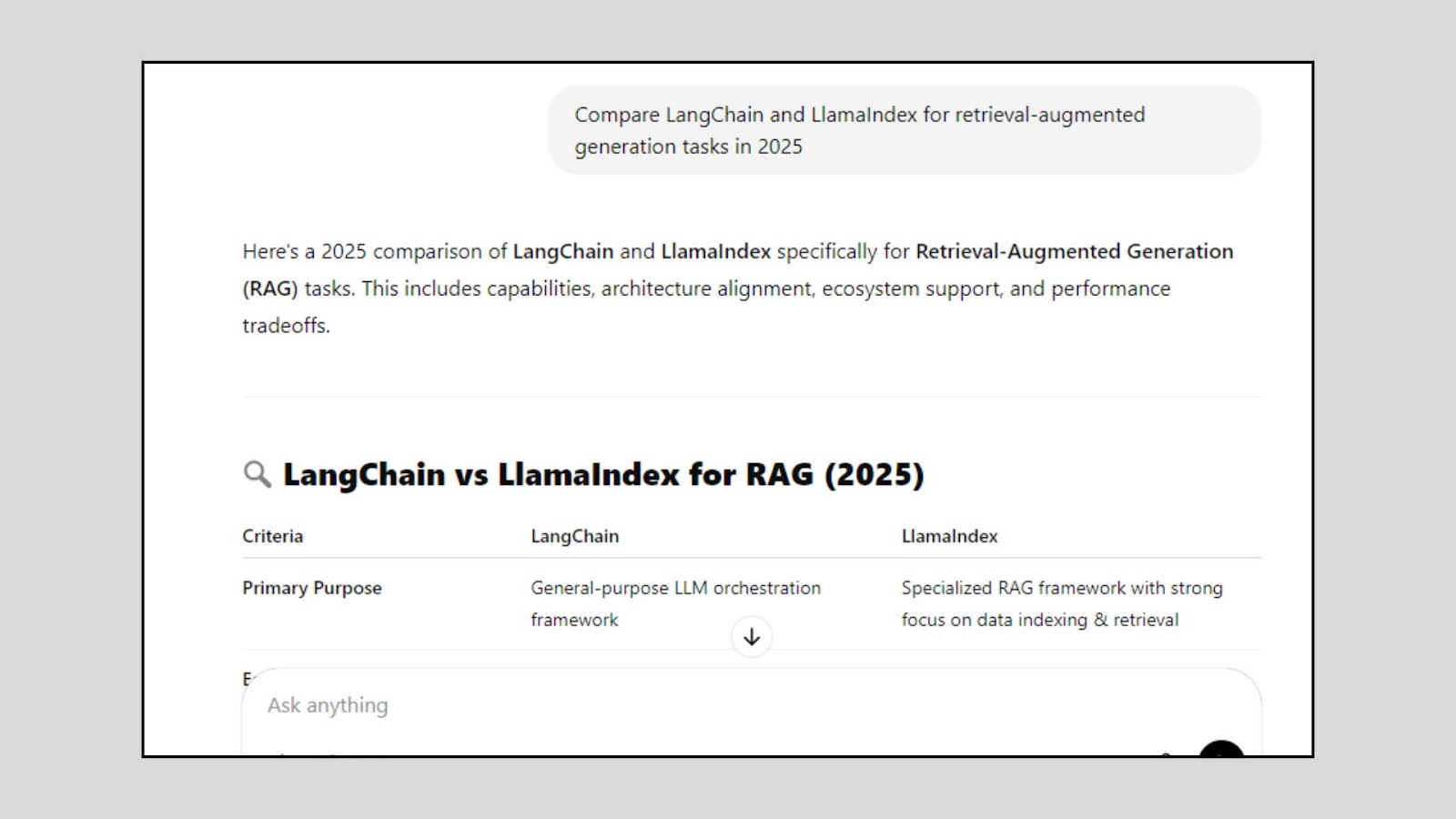
“Compare LangChain and LlamaIndex for retrieval-augmented generation tasks in 2026.”
ChatGPT will give you a structured answer, breaking down tools, methods, and trade-offs, like a tech blog post or research summary.
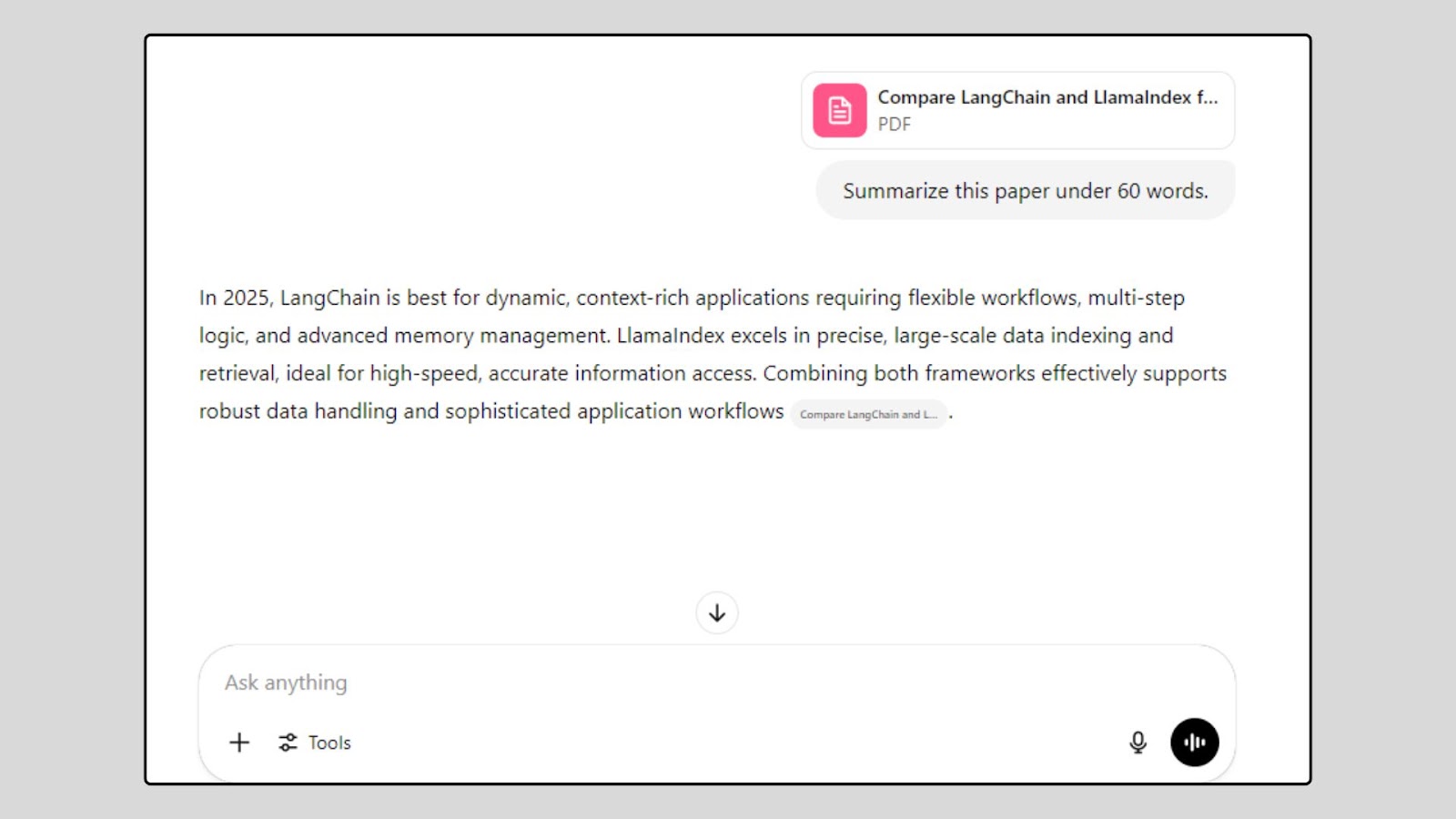
Step 3: Upload a research paper or PDF (Plus and Pro only)
If you’re on GPT-5 with file uploads enabled, you’ll see a paperclip icon next to the input box.
Upload research PDFs, architecture docs, or logs.
Then prompt ChatGPT with:
“Summarize this paper under 60 words,”
It will extract and explain the content line-by-line or section-by-section.
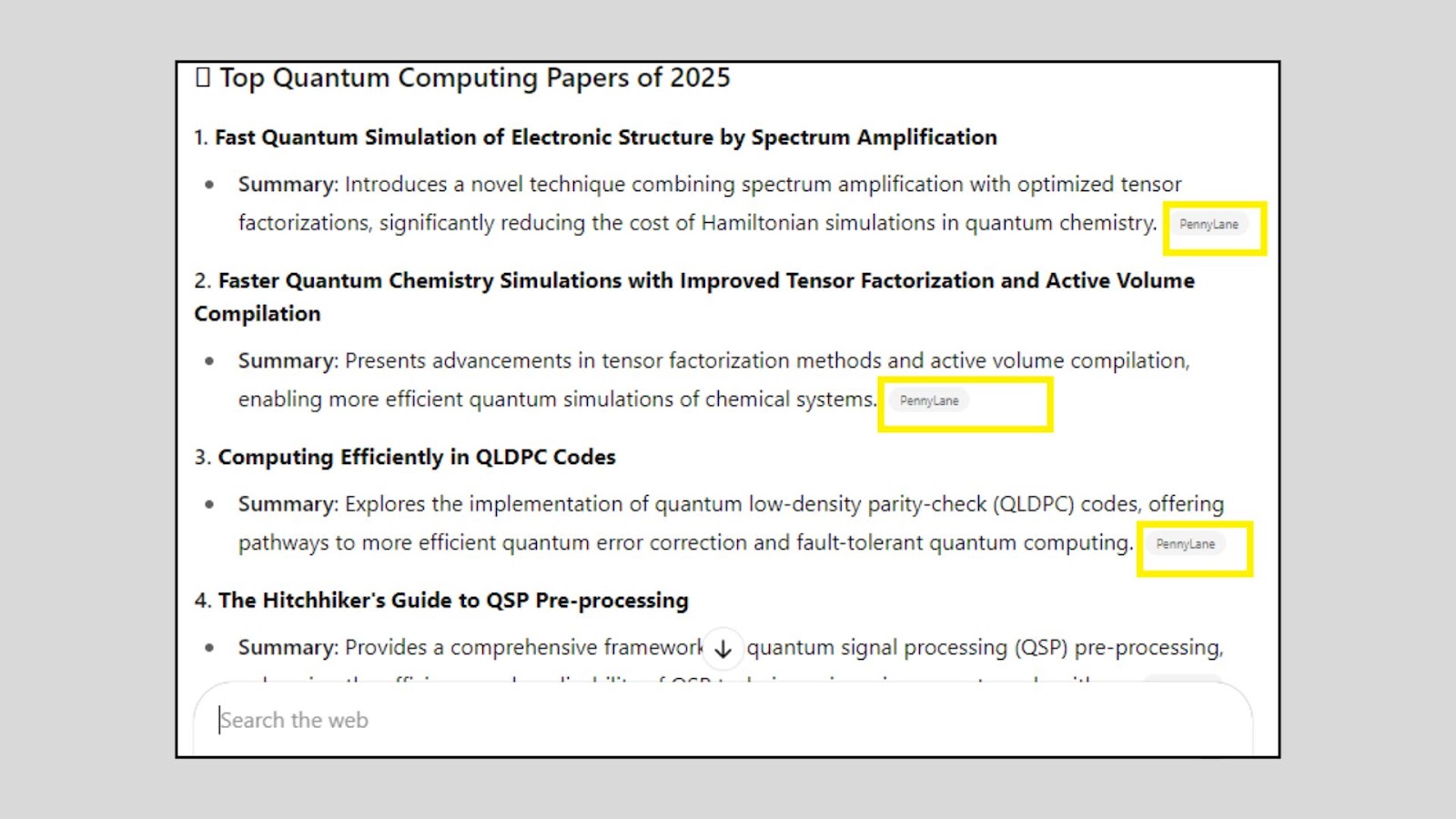
Step 4: Enable web browsing (Pro users) for the latest info
Open Settings > Connectors and turn on Web Search and Deep Research. This lets ChatGPT access real-time web content.
Now you can ask:
“What are the top papers published on quantum computing in 2026?”
Step 5: Refine or follow up on the response
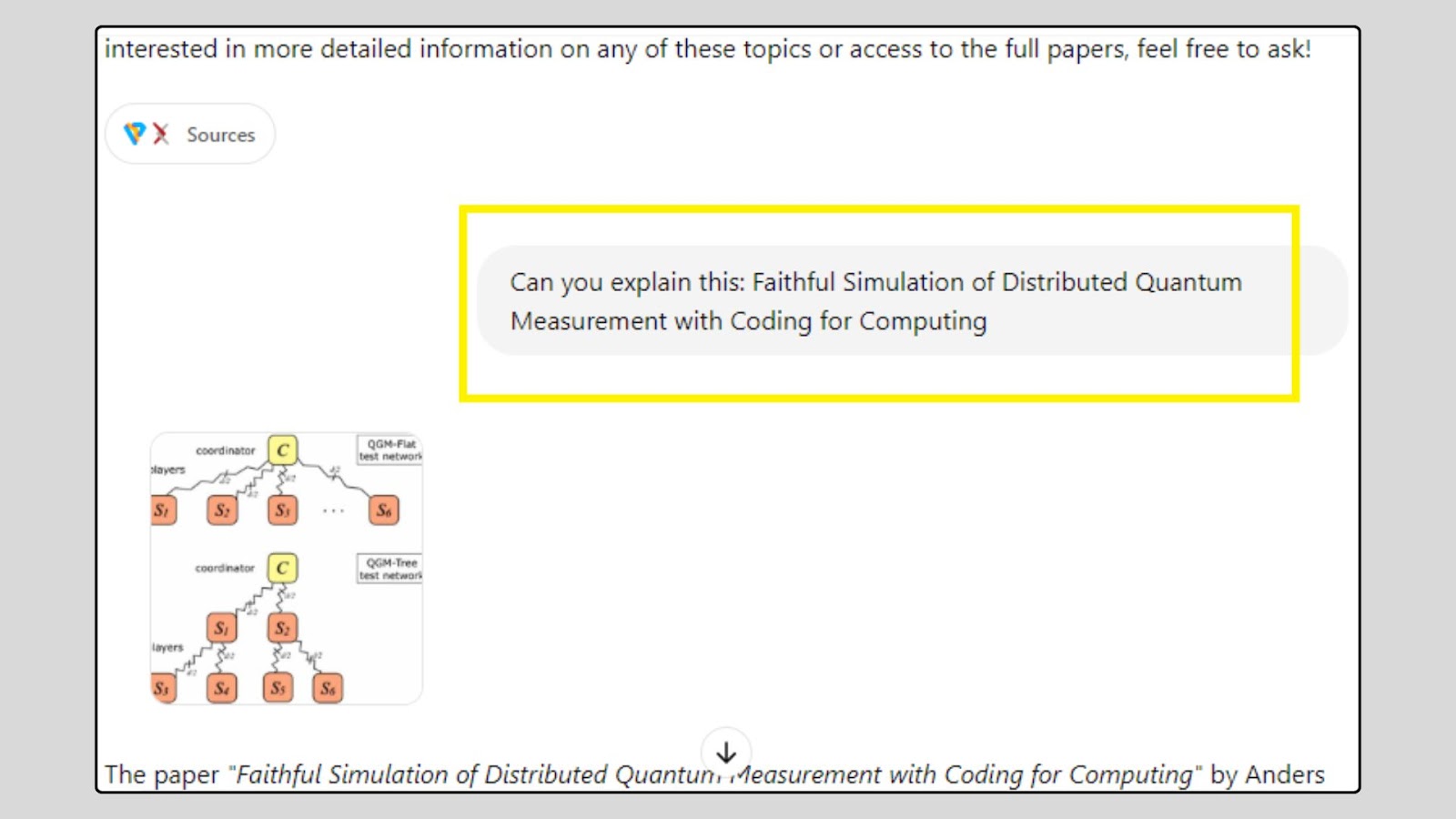
You can ask follow-up questions, clarify parts of the answer, or request code, examples, and comparisons. It remembers the conversation and improves context with each prompt.
What I liked
- Easy to ask complex questions and get clean, human-like explanations
- File upload + web browsing features make it a true research assistant
- Can compare frameworks, generate summaries, or even write example code
- Great for debugging, whitepaper reviews, or academic brainstorming
What I disliked
- Free version is rate-limited (GPT-5 caps, no Deep Research, fewer file uploads)
- Responses can sometimes be overly general or skip citations
- Doesn’t show sources unless you use plugins or the browsing mode
Pricing
- Free Plan: GPT-5 with daily caps
- ChatGPT Plus: $20/month. It includes GPT-5.1, advanced reasoning, web browsing, file uploads, Deep Research, and memory features.
- Pro Plan: $200/month. It unlocks GPT-5 Pro, unlimited Deep Research, and the longer-running agent tools.
Who should use ChatGPT?
- Developers who need quick breakdowns of technical concepts
- Researchers reading papers or exploring recent trends
- Students working on assignments or preparing for interviews
- Writers creating research-based content or documentation
Final Verdict (For Developers)
ChatGPT is more than just a chatbot; it’s a research assistant, writing tool, and technical explainer rolled into one. With GPT-5.1’s advanced features, like file reading, browsing, and Deep Research, you can save hours while researching complex topics.
The takeaway? It’s not just helpful for writing answers, but also for understanding the “why” behind them. Use it to learn faster, code smarter, and research deeper.
3. Elicit
What it does
Elicit is an AI-powered research assistant built to help you search and analyze academic papers. It automates literature reviews, summarizes studies, compares research findings, and extracts key data points—all from peer-reviewed sources like Semantic Scholar. It is perfect for evidence-based research.
How to Use It (Mini Walkthrough for Deep Research)
Step 1: Visit Elicit
Go to https://elicit.com and sign in with your Google account. Once logged in, you’ll land on the “Literature Review” interface.
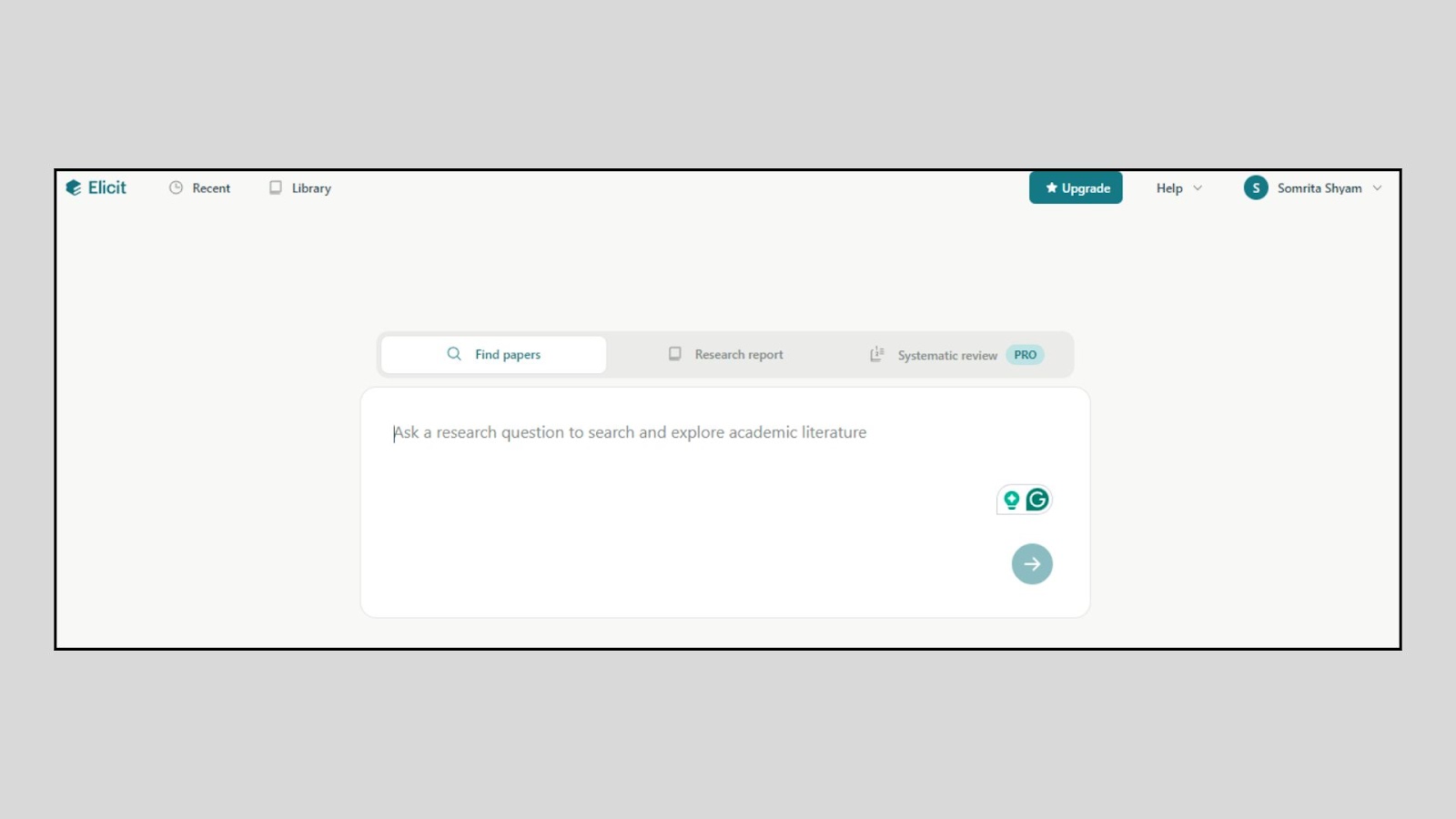
Step 2: Ask a research question
Type a detailed question like:
“What are the benefits of using transformers for time series forecasting?”
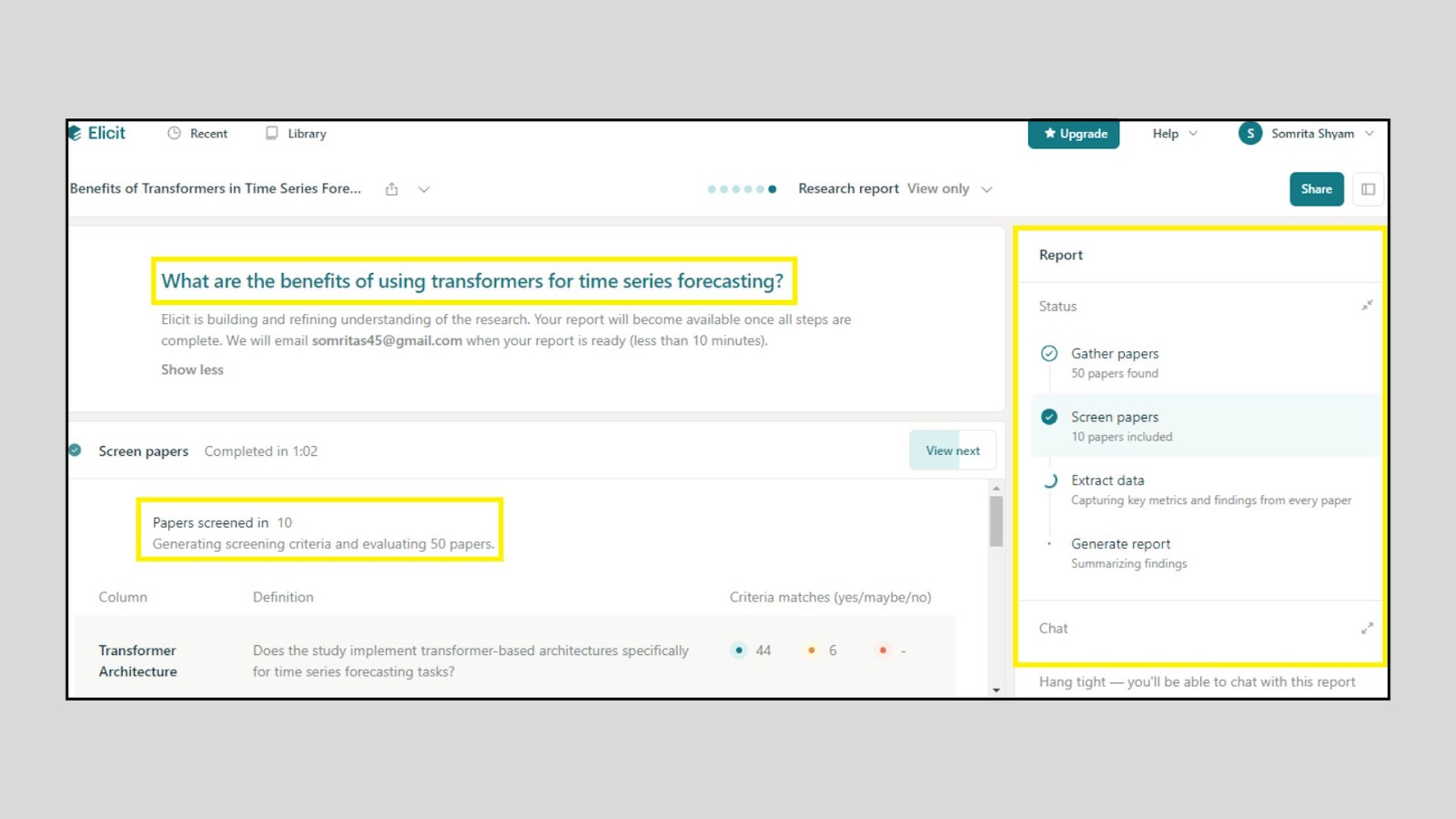
Elicit will search academic databases and return a list of relevant papers, each with titles, abstracts, and key findings summarized for you.
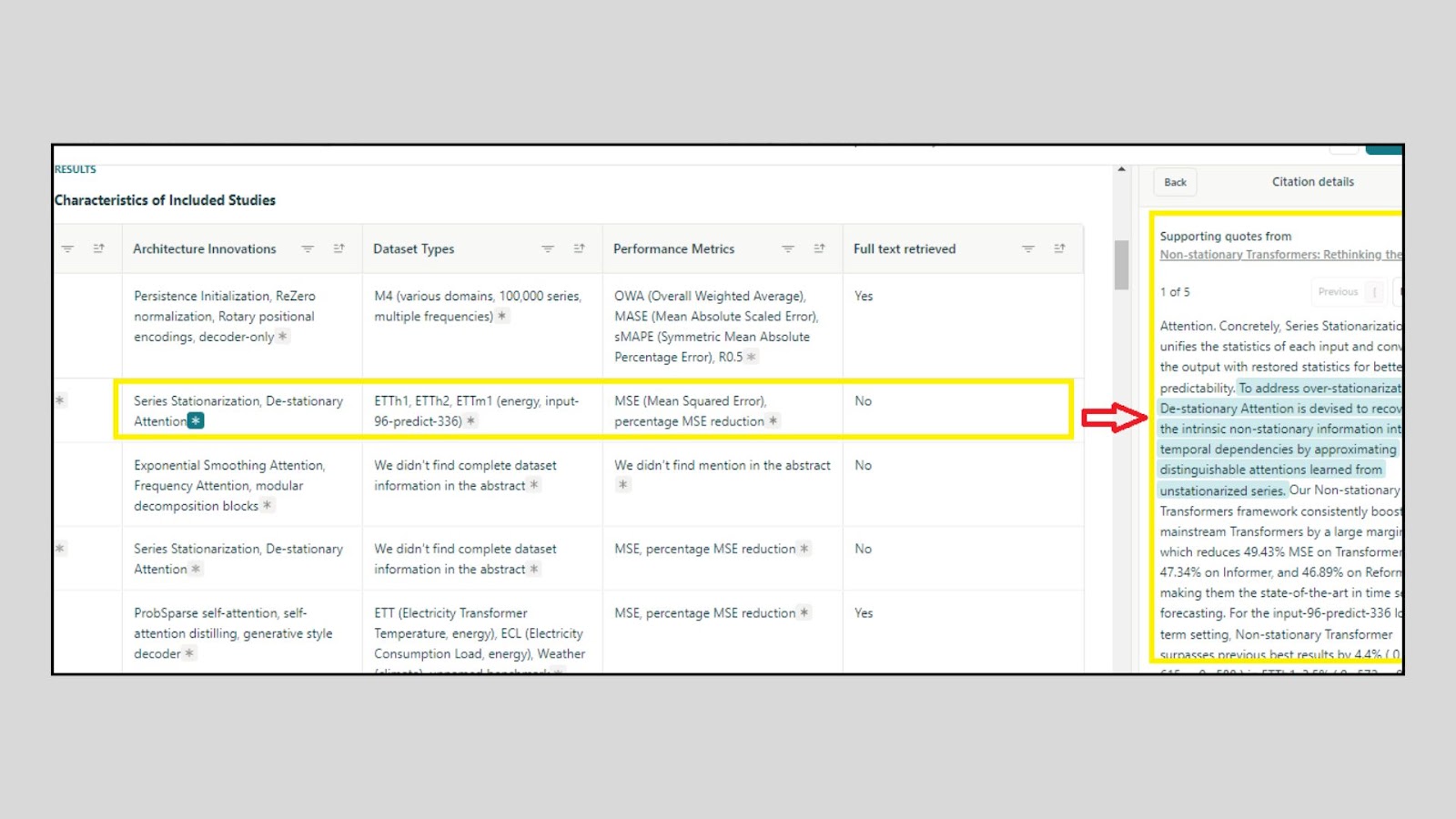
Step 3: Review and customize table columns
Elicit shows the results in a table format. You can add columns like “Methods,” “Intervention,” “Results,” or “Sample Size.”
This allows you to compare papers side-by-side without opening each one. It’s ideal for identifying trends, best practices, or common techniques.
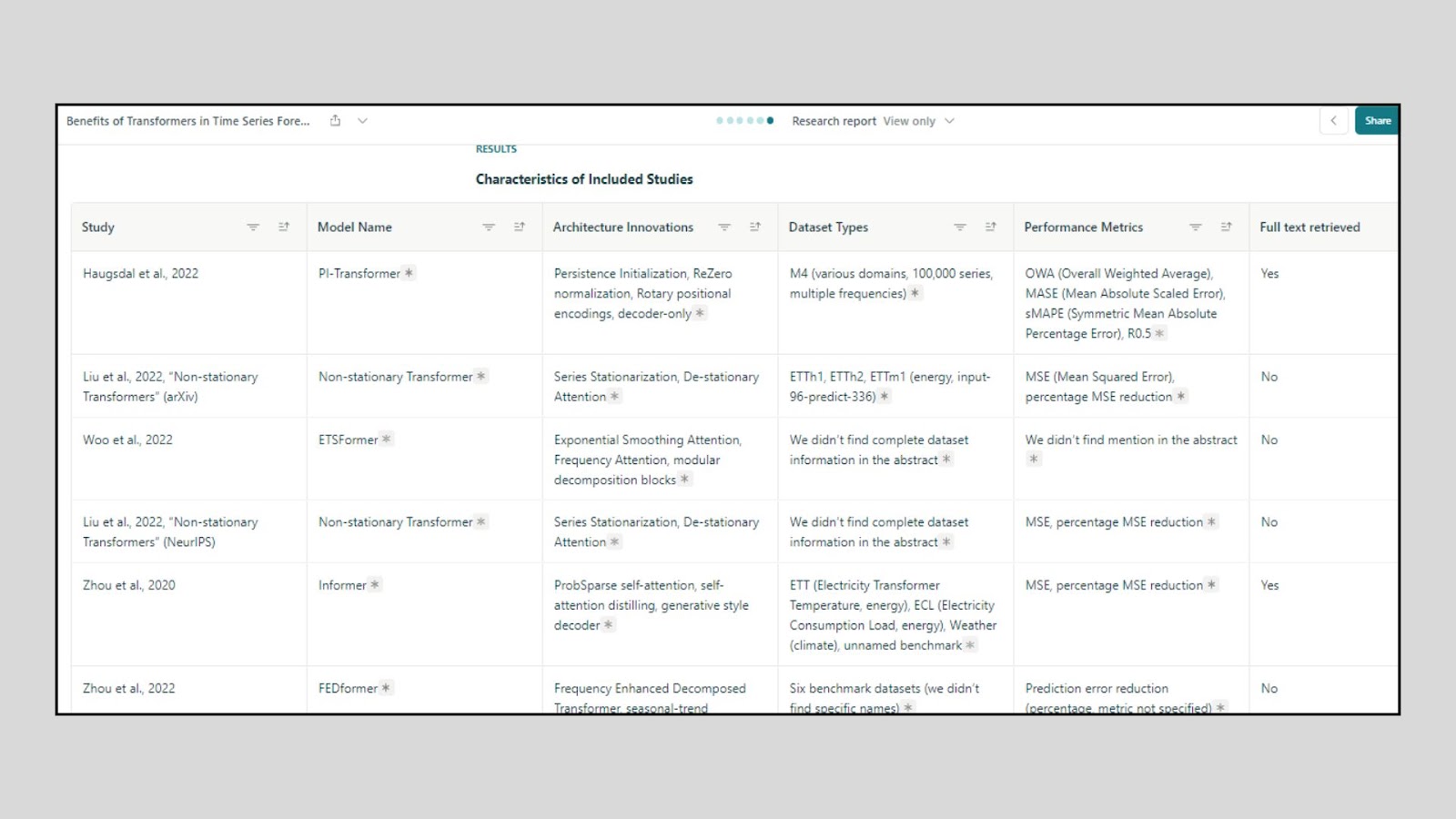
Step 4: Read summaries and open full papers
Click on any paper title to read a summary or go directly to the full-text version on Semantic Scholar.
You can also highlight parts of the summaries for clarity or use filters to focus on high-quality studies or recent research.
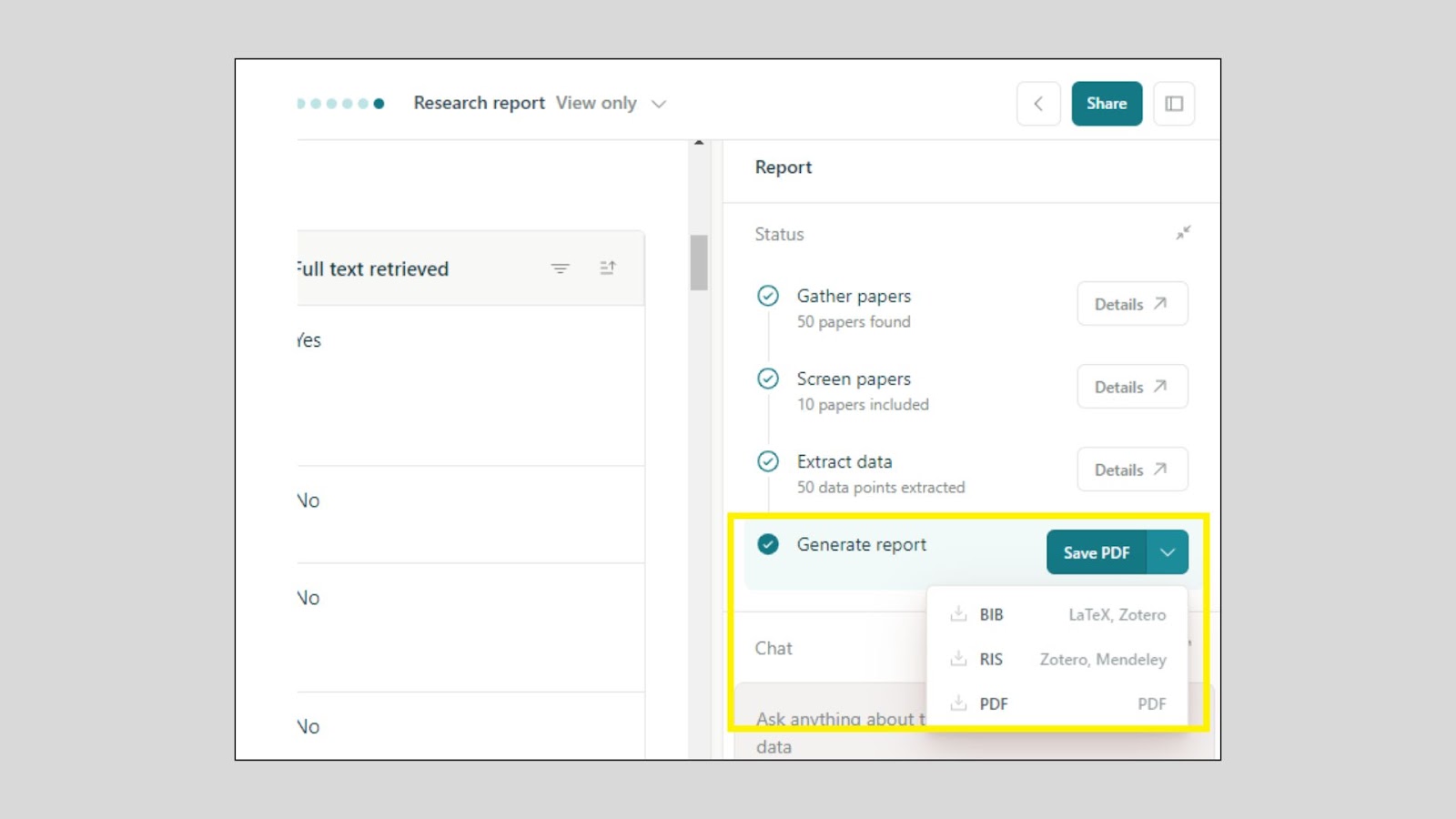
Step 5: Export findings or copy to notes
Once you've narrowed down useful papers, you can copy the table, download the summaries, or integrate them into your project documentation or reference manager.
This makes it easy to cite sources or organize insights into your workflow.
What I liked
- Saves hours on manual literature reviews
- Table-based layout is clean and perfect for comparing papers
- Answers research queries with focused summaries
- Pulls from reliable sources like Semantic Scholar
- No need to read every full paper to understand key takeaways
What I disliked
- Limited to academic research, not great for general web content
- Can miss niche papers or highly recent studies
- Doesn’t always extract data like sample size accurately
- Requires rewording questions carefully to get precise results
Pricing
- Free: Access to all core features including literature search, paper summaries, and table view.
- Plus plan: $10/month
- Pro Plan: $42/month
- Team plan: $65 per user/ month
Who should use Elicit?
- Developers and ML engineers doing academic research
- Students writing literature reviews or research papers
- UX researchers gathering scientific evidence
- Founders validating ideas with data-backed studies
Final Verdict (For Developers)
Elicit is like having a mini research team that filters and summarizes academic papers for you. It’s especially useful when diving into topics like model performance, algorithm comparisons, or application case studies.
The main takeaway? Use Elicit when you need academic-level clarity without digging through PDFs all day. It won’t replace critical reading, but it gets you 80% faster.
4. Consensus
What it does
Consensus is an AI-powered search engine that answers questions by summarizing findings from peer-reviewed research papers. Instead of giving opinions or random blog answers, it provides scientifically backed responses, often with a “Yes,” “No,” or “It depends” based on how the research aligns.
How to Use It (Mini Walkthrough for Deep Research)
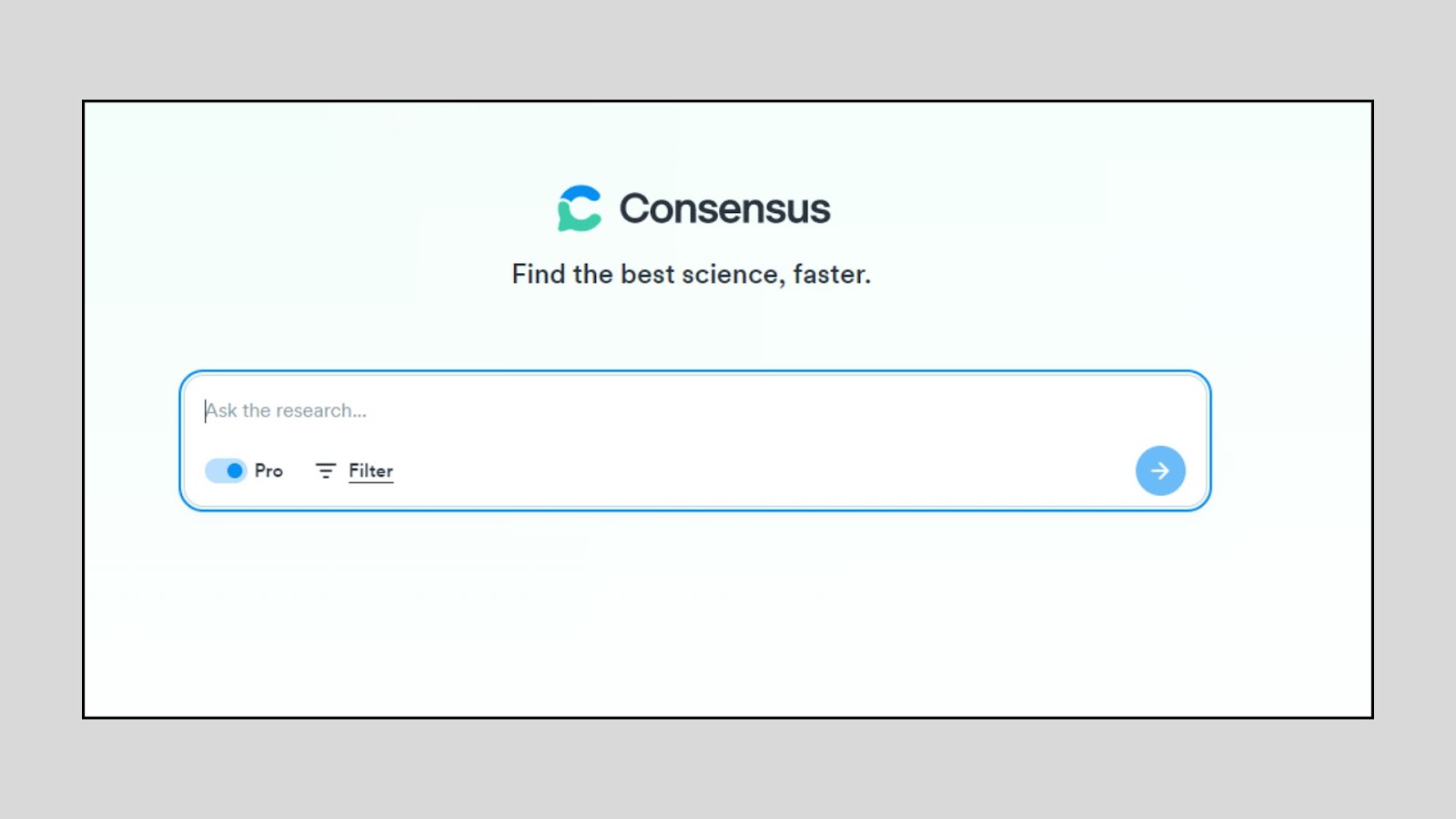
Step 1: Go to Consensus
Sign up with your email or Google account. Once logged in, you’ll see a large search bar where you can type your research question.
Step 2: Ask a yes/no or fact-based question
Consensus works best with clear, science-based questions like:
“Does intermittent fasting improve cognitive function?”
It will scan thousands of research papers and return a summary with a confidence indicator (e.g., most studies say “Yes”).
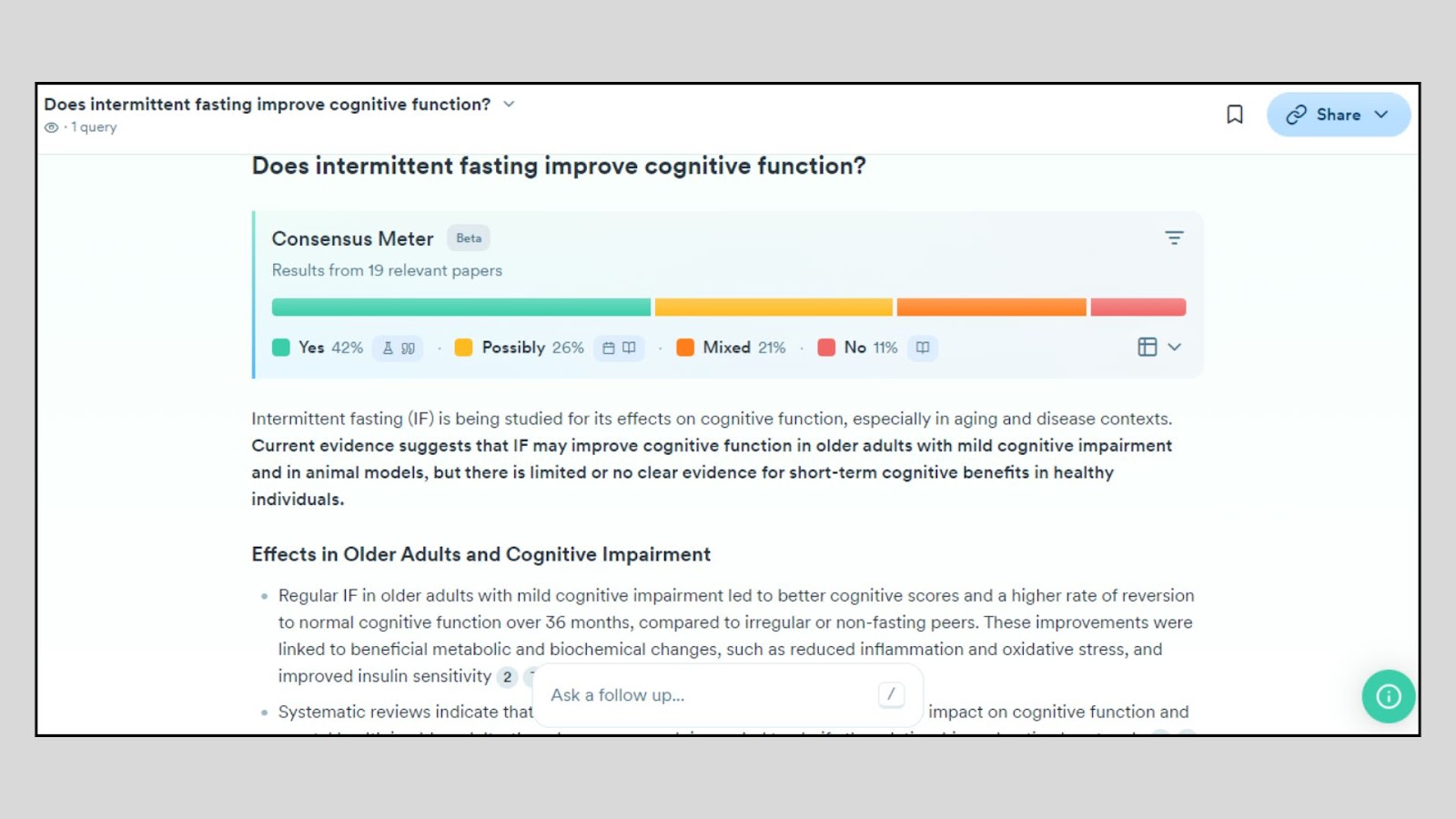
Step 3: View the summarized scientific consensus
You’ll see an easy-to-read overview showing how many papers support, oppose, or are neutral on the topic.
Below that, you’ll find a list of paper titles, summaries, and key highlights extracted using AI.

Step 4: Click into individual papers for more detail
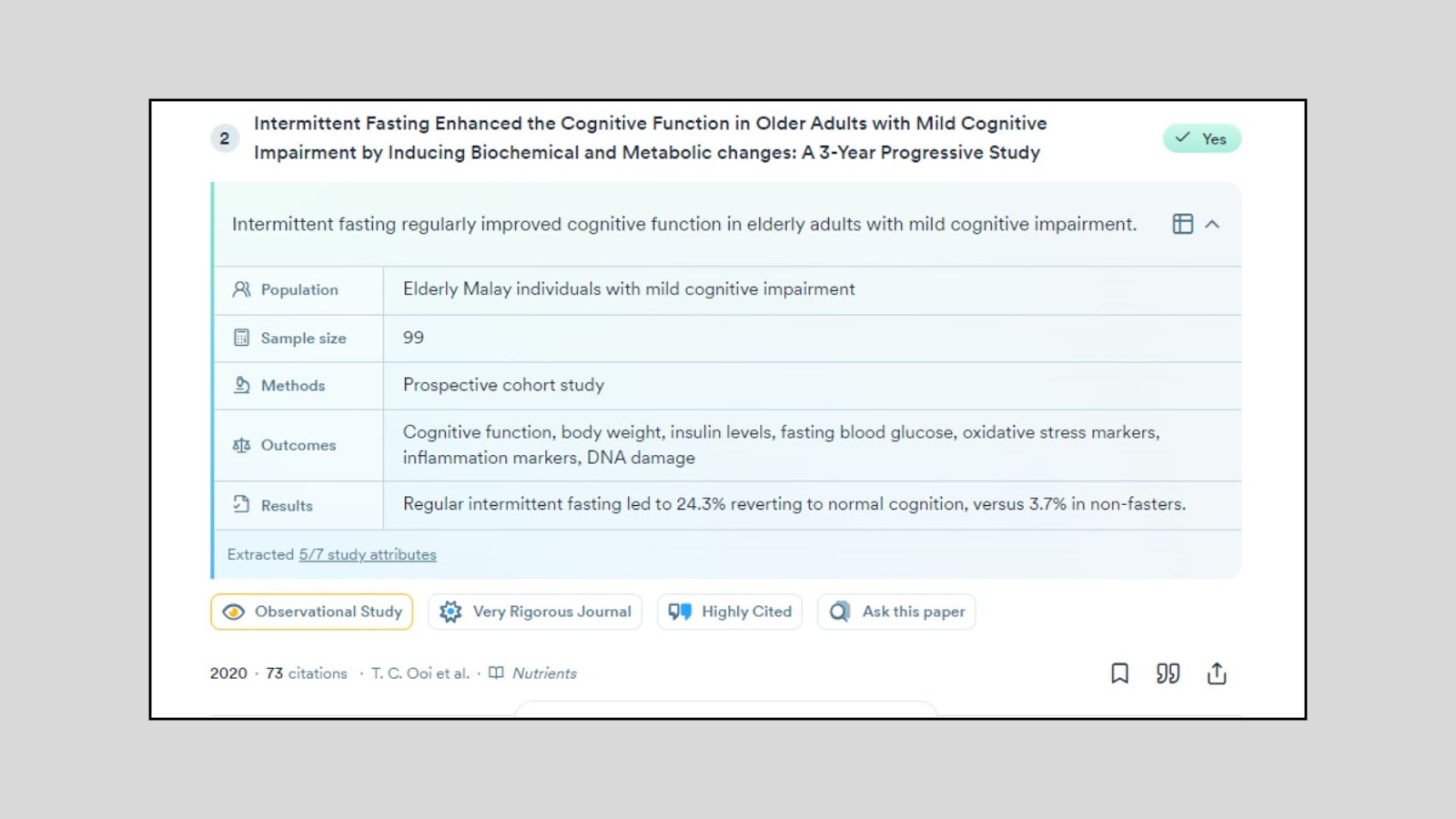
Click on a paper to open a side panel or redirect to the full version. You can read the abstract, explore the methodology, and check the year and journal.
This is helpful if you want to verify the source or dig into technical sections.
Step 5: Save or export findings
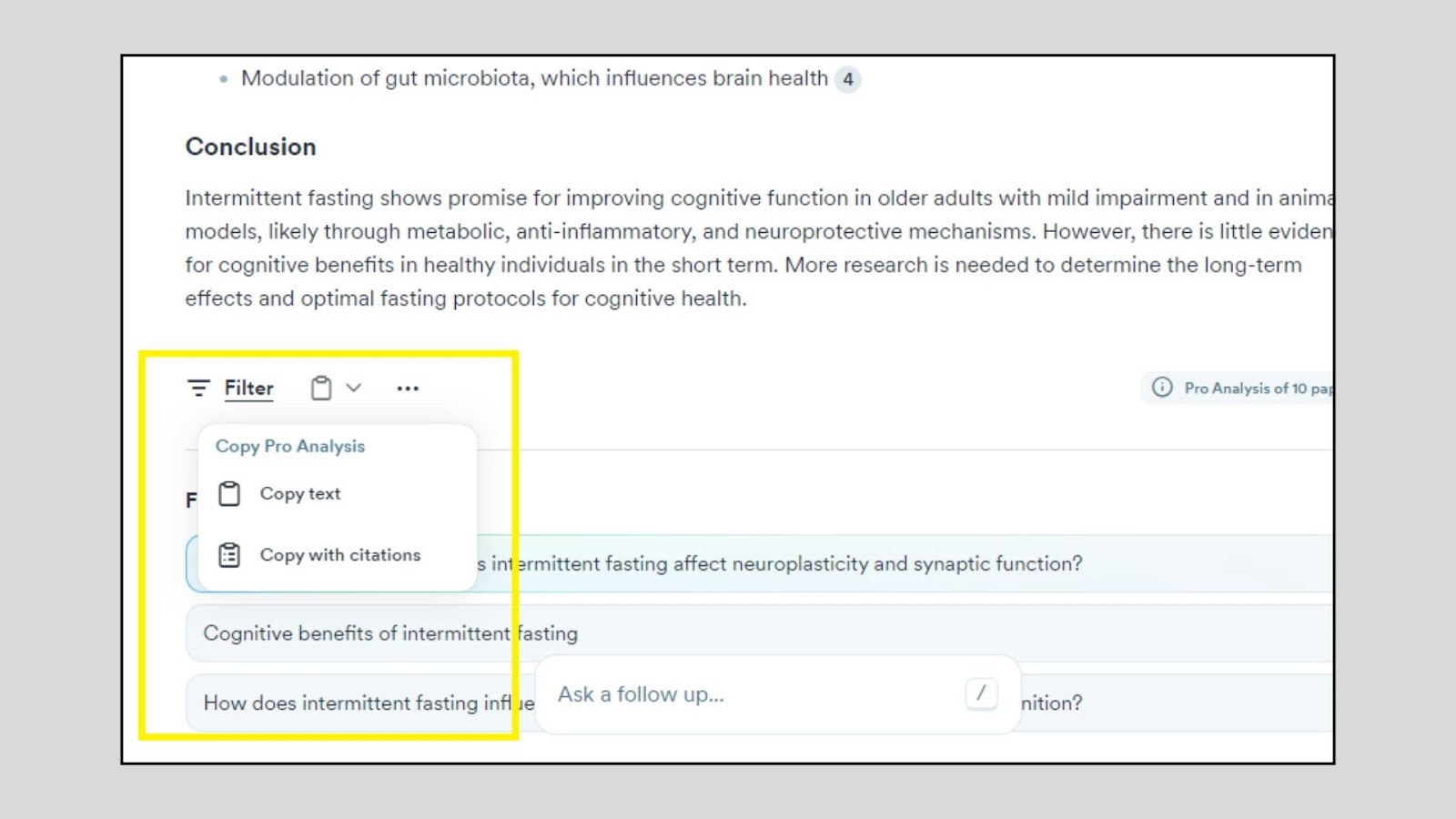
Currently, Consensus doesn’t have a direct export feature, but you can:
- Copy summaries into your notes
- Save direct links to relevant papers
- Use browser extensions like Zotero to save citations
This helps you organize reliable evidence for writing, development documentation, or academic work.
What I liked
- Instant summaries of real research, which are great for fact-checking
- A simple “Yes/No/Depends” answer format makes decision-making easy
- Saves time on literature review for science-heavy or medical topics
- Clean, fast, and distraction-free interface
What I disliked
- Only works well with research-backed, scientific questions
- Not ideal for subjective, technical, or coding queries
- Doesn’t support advanced filtering by field or dataset (yet)
- No export to citation tools like Mendeley or Zotero (manual workaround needed)
Pricing
- Free plan: Access to basic research summaries and paper previews
- Pro plan: $11.99/month. It includes enhanced summaries, more paper results, and early access to new features.
Who should use Consensus?
- Developers and product managers validating ideas with evidence
- Researchers doing quick scientific literature scans
- Writers, students, or bloggers who want to cite real studies
- Founders are checking if their product concept is research-supported
Final Verdict
Consensus is a great tool when you need real answers based on real science. Whether you're validating a health-related app, exploring behavioral data, or comparing research-backed models, it saves hours of reading.
Though it's worth noting that building strong research habits starts early; even working with an elementary math tutor teaches the kind of evidence-based thinking that makes tools like Consensus second nature later on.
The key takeaway? It won't help with code, but when you want to know “what the science says,” Consensus is fast, clear, and reliable.
5. Scite
What it does
Scite is an AI-powered research platform that finds academic papers and shows how those papers have been cited, whether the citation supports, contradicts, or merely mentions the original study. It’s ideal for verifying scientific claims, understanding context, and identifying trustworthy research.
How to Use It (Mini Walkthrough for Deep Research)
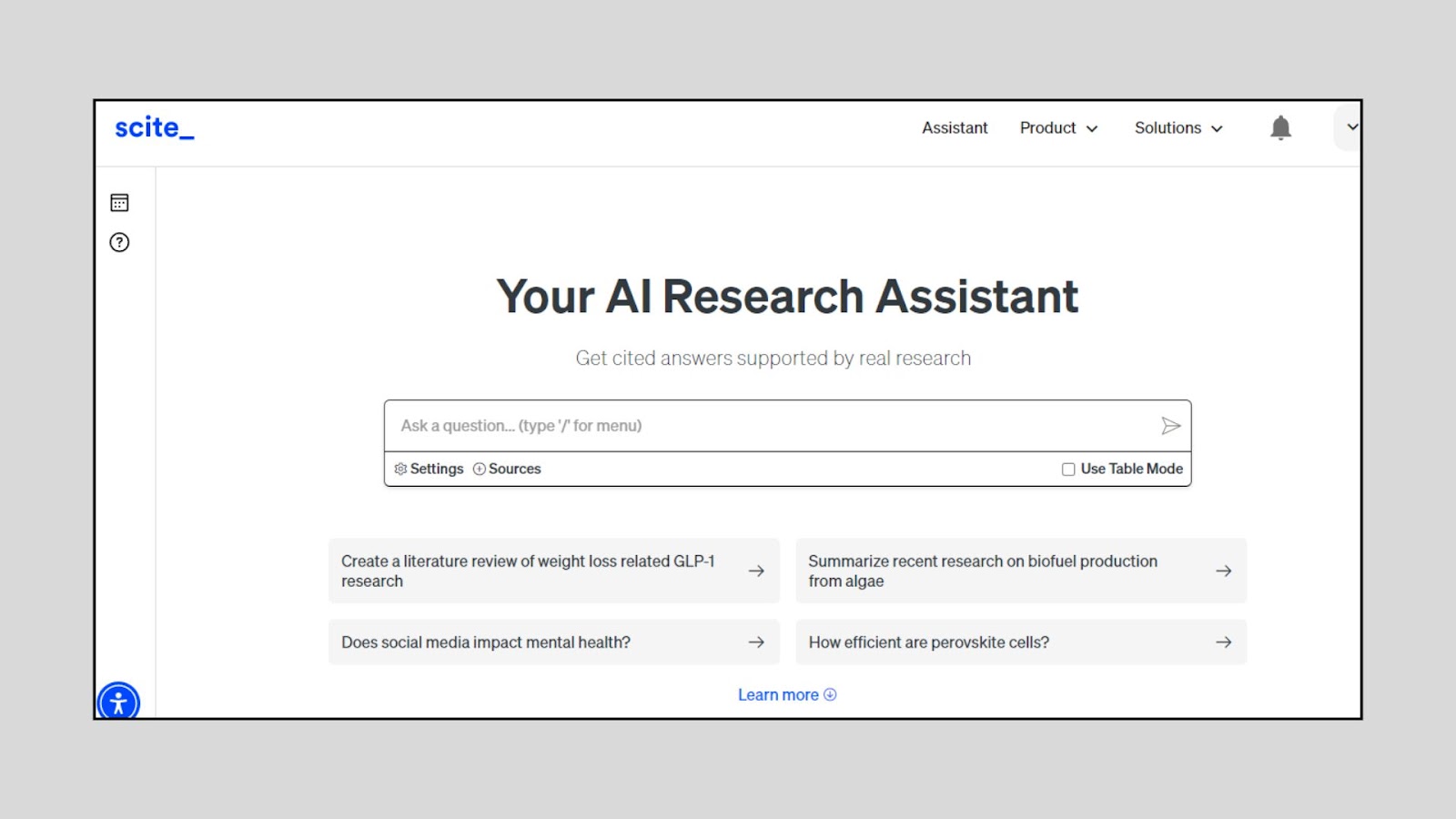
Step 1: Go to Scite and create an account
Sign up with your email or use Google for a quick login. Free users can search and explore papers with some limits, while paid users get access to full citation contexts and analytics.
Step 2: Search for a specific paper, keyword, or topic
Enter your search term in the bar.
Example:
“Graph neural networks for drug discovery”
Scite will return a list of academic papers along with metrics like the number of times they’ve been cited and the types of citations (supporting, mentioning, or contrasting).
Step 3: Use “Smart Citations” to see how the paper is being used
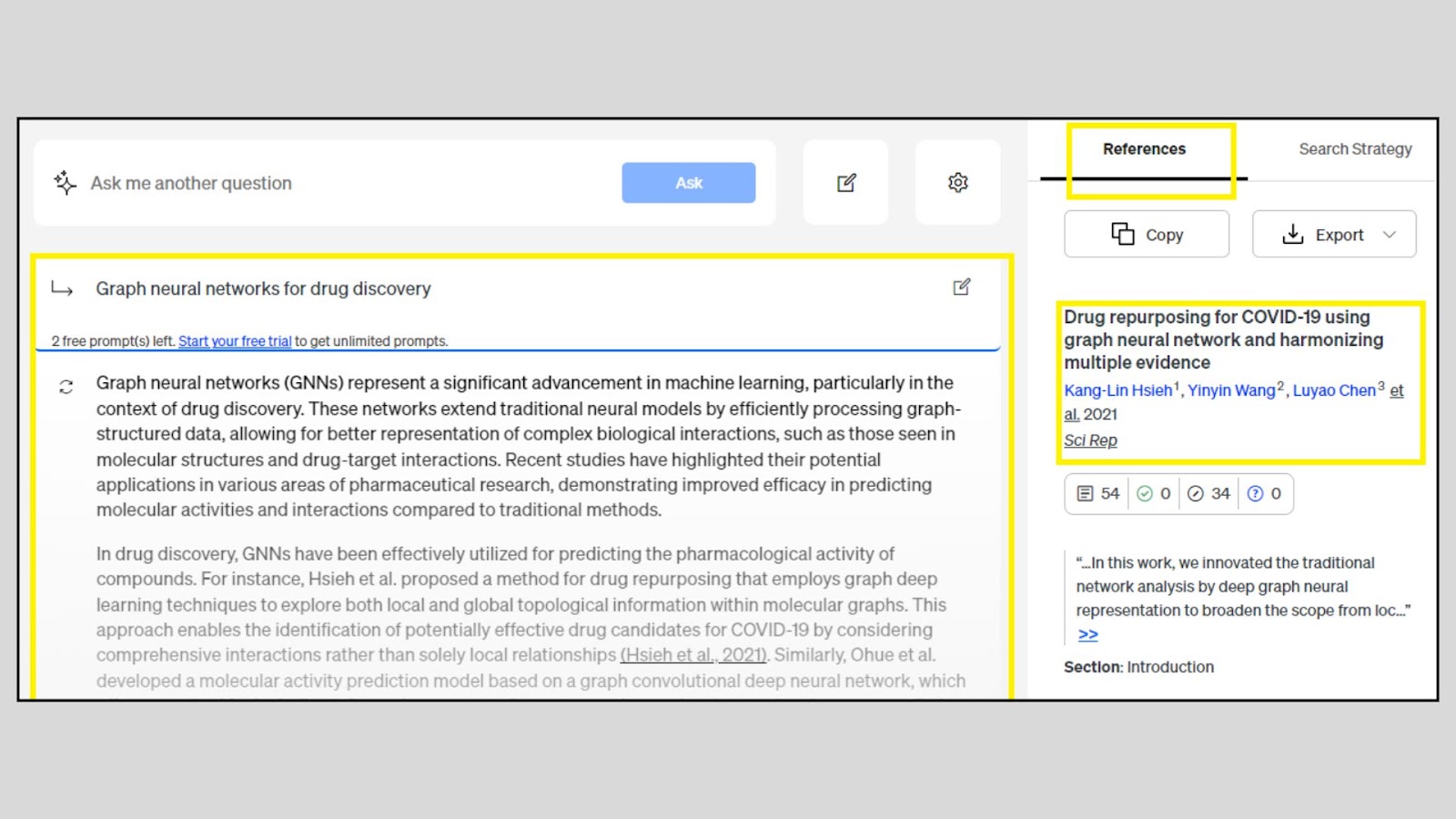
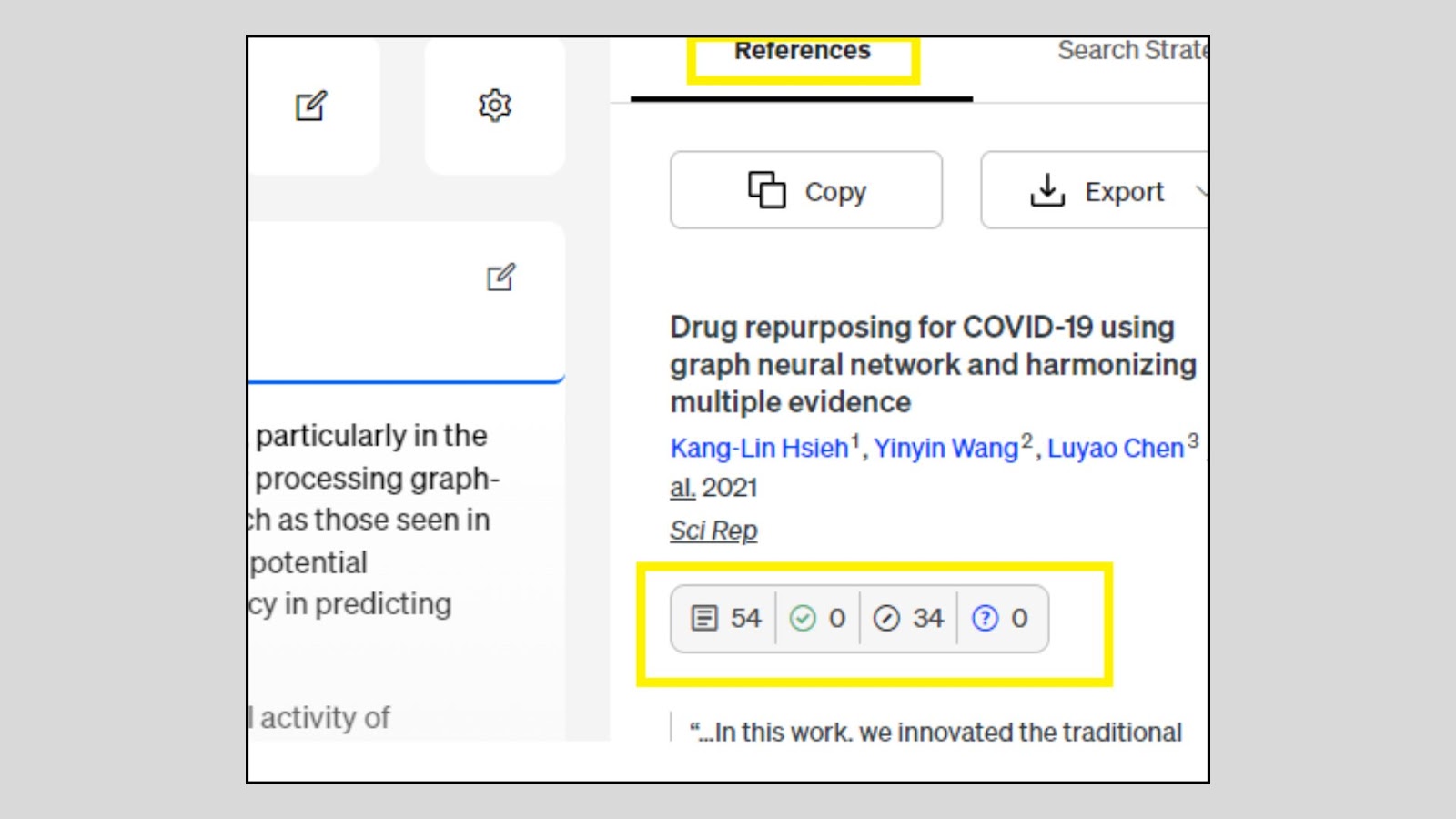
After searching for a topic like “Graph neural networks for drug discovery,” Scite will display relevant academic papers in the References section on the right-hand side. For each paper, you’ll see:
- The paper title, authors, publication year, and journal link
- A quick preview of a citation snippet from another paper that references it
- Below the title, three numbers:
- Total citations (first number)
- Supporting citations (✓ icon)
- Mentioning citations (🛈 icon)
- Contrasting citations (⊖ icon)
These indicators help you understand how other researchers have used this paper:
- Supporting means the paper agrees with or builds on the original
- Mentioning means it’s cited without opinion
- Contrasting means it challenges or disagrees with the study
Step 4: Read citation snippets and context
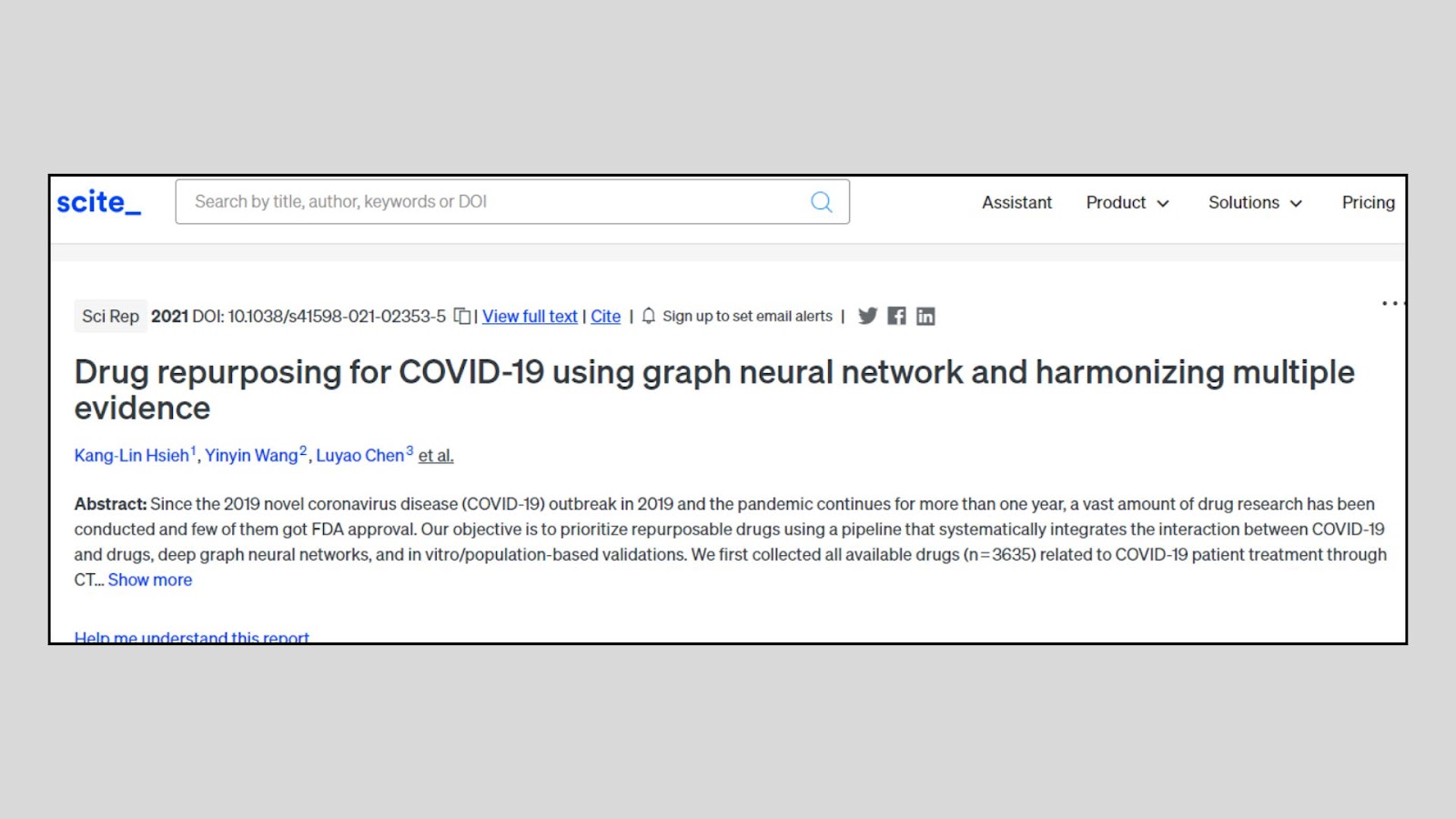
Click on any citation to view a snippet of how it was cited in the newer paper.
You’ll see exact sentences from the citing paper, giving you a clear idea of how the study is being interpreted or challenged.
Step 5: Save papers, create reference libraries, or export citations
You can click “Add to Library” to organize papers by project or theme.
Scite also allows BibTeX or RIS export for citation managers like Zotero, Mendeley, or EndNote, perfect for research documentation, academic writing, or developer whitepapers.
What I liked
- Smart citations reveal whether a paper’s claims are supported or disputed
- Very helpful for validating facts or tracing how research evolves
- Great filters by study type, journal quality, or citation strength
- Clean interface, easy to use even for beginners
What I disliked
- The free version limits the number of Smart Citation views
- Slight learning curve to understand citation breakdowns
- Doesn’t always index the latest papers as fast as Google Scholar
- Requires rewording queries for specific technical domains
Pricing
- Free Plan: Limited Smart Citations and search capabilities for 7 days
- Scite Assistant (Pro): ₹700/month. It includes unlimited Smart Citations, citation context, paper libraries, and advanced search tools
Who should use Scite?
- Developers validating research claims or implementation details
- Students writing research papers or thesis work
- Academics doing meta-analysis or replication studies
- Founders or PMs looking to cite solid, peer-reviewed evidence
Final Verdict (For Developers)
Scite is a fact-checking superpower for research. Instead of just finding papers, it tells you how other scientists reacted to them, which is incredibly useful when you’re evaluating a method, tool, or theory.
The lesson? Don’t just check if a paper exists, check if it's been challenged, supported, or improved. Scite gives you that insight in seconds.
6. Research Rabbit
What it does
Research Rabbit is a visual research discovery tool that helps you explore, map, and track scientific papers and authors. It shows you how papers are connected through citations, co-authorship, and related topics like a "Spotify for academic literature." It’s ideal for discovering new papers and building a research journey over time.
How to Use It (Mini Walkthrough for Deep Research)
Step 1: Sign up and log in at Research Rabbit
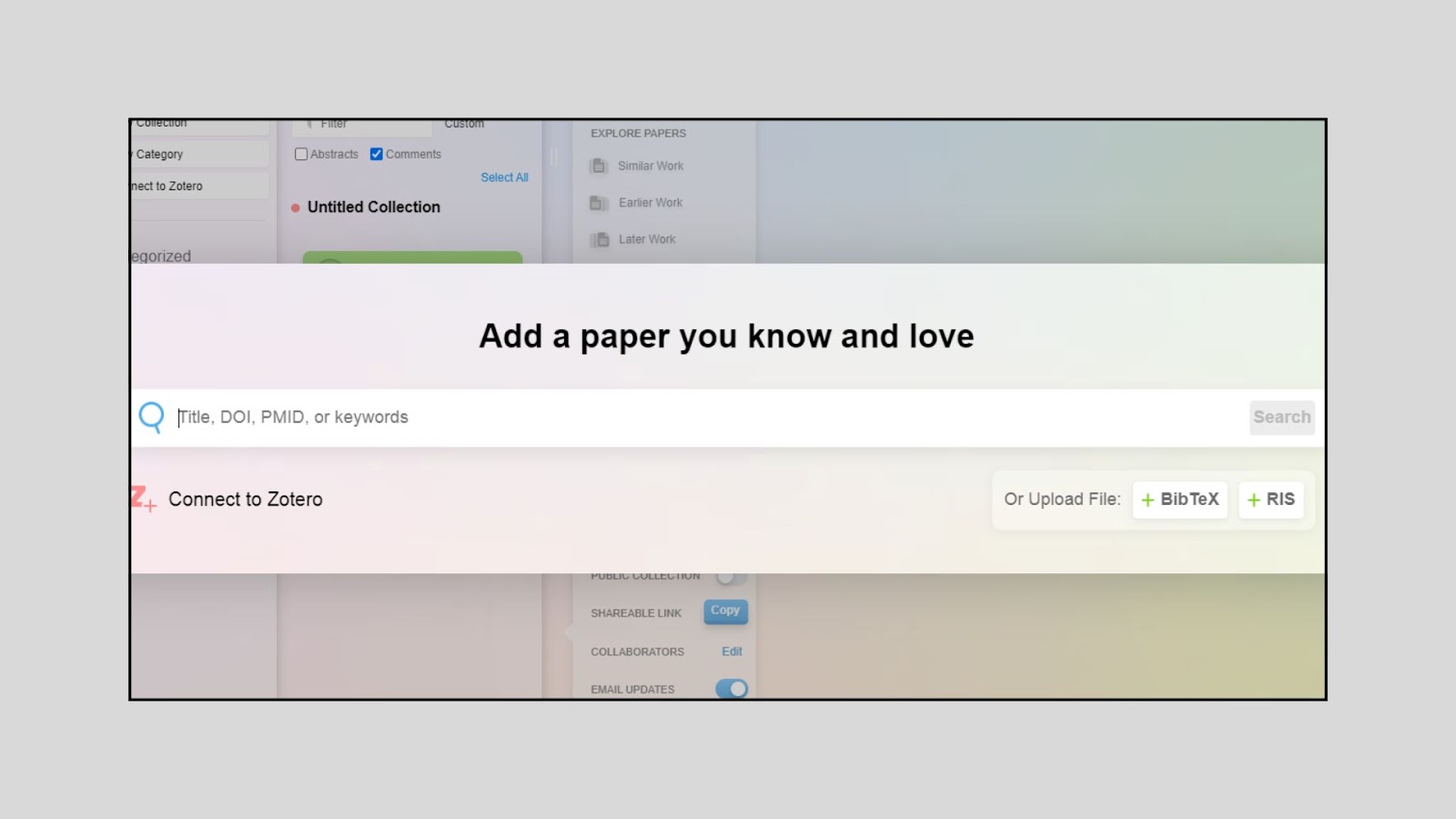
Create a free account with your email or Google. After logging in, you'll be prompted to create a Collection, which is where your papers will live.
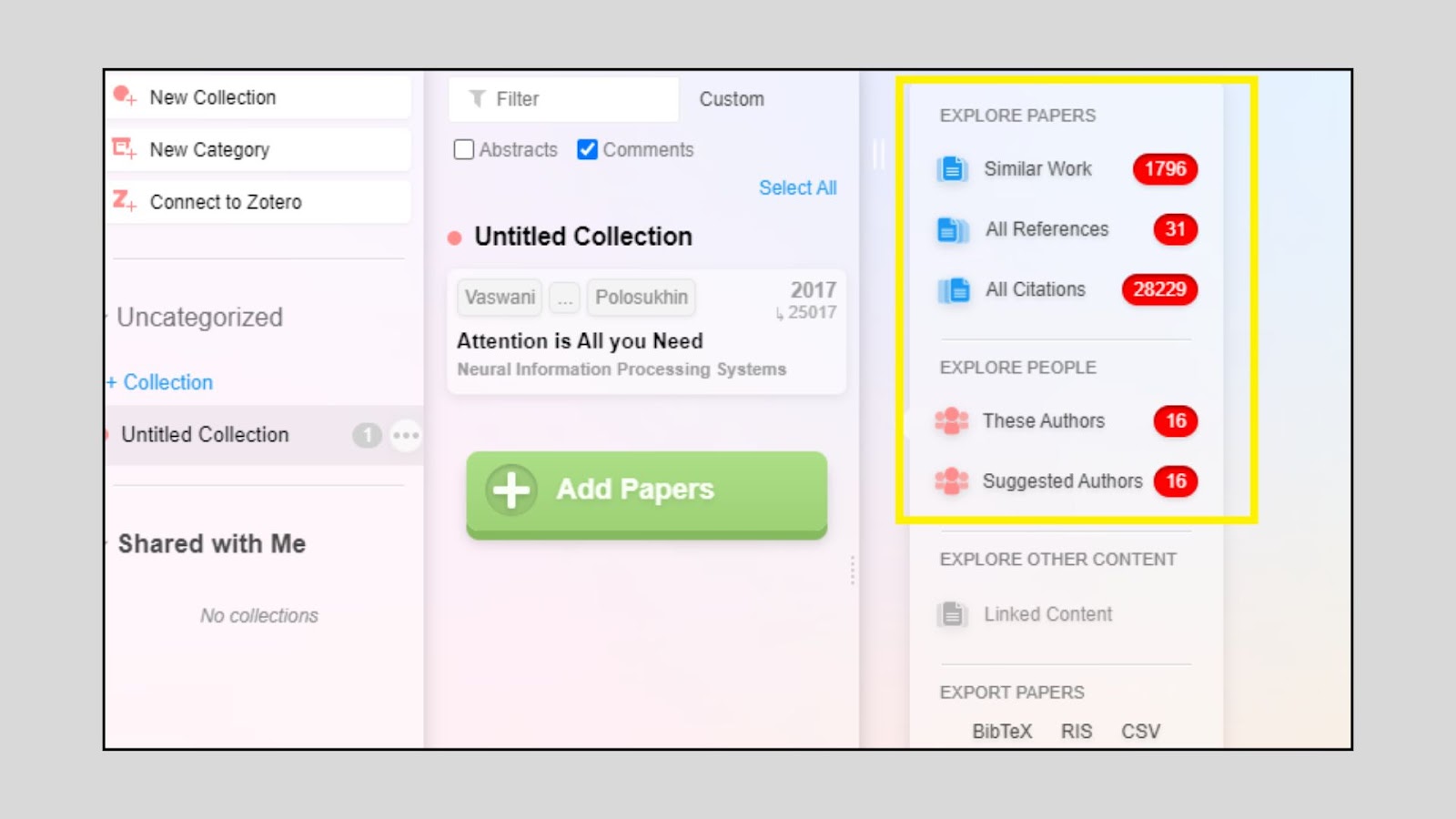
Step 2: Start a collection by adding your first paper
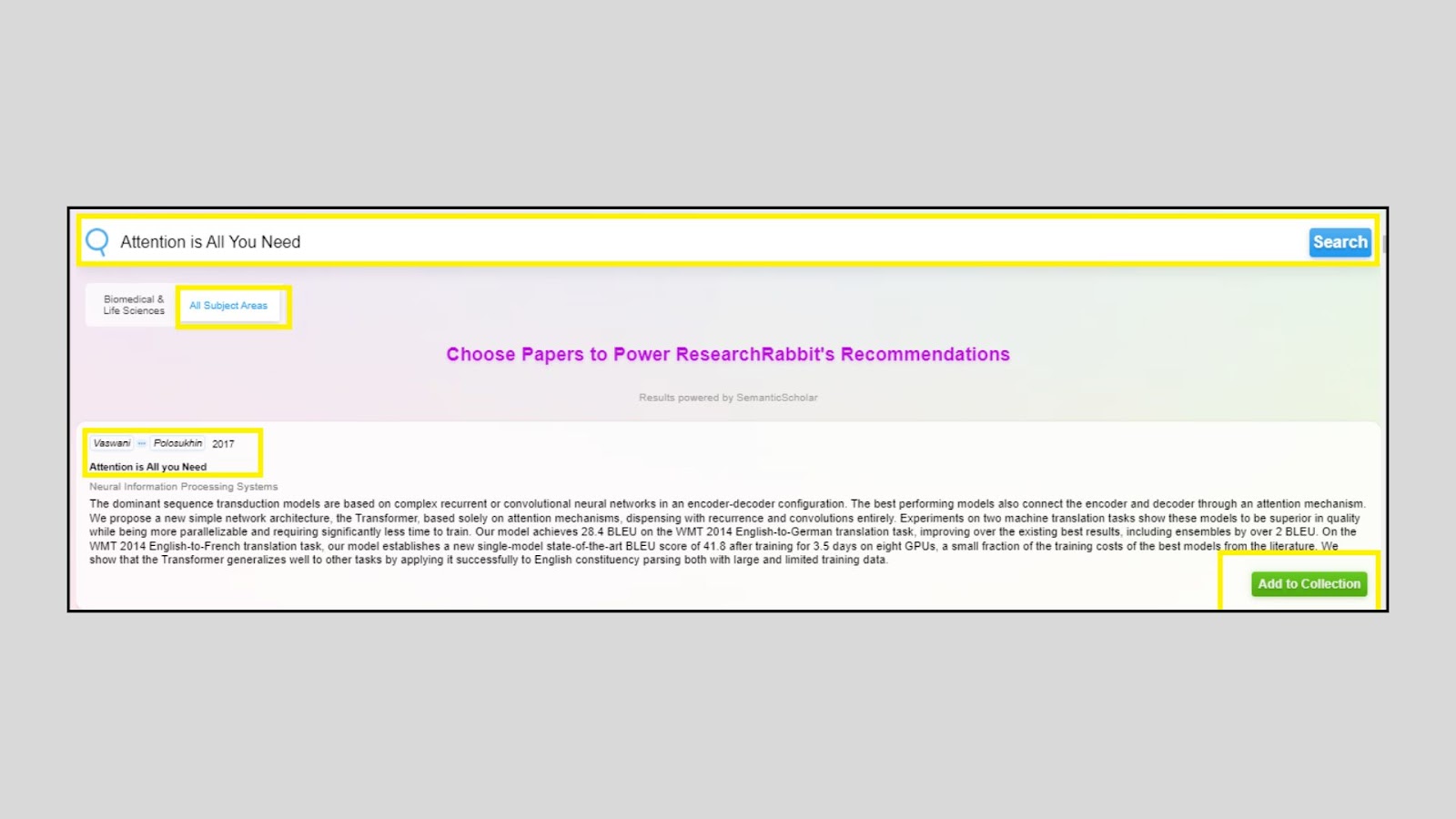
Search for a research paper using title, author, or DOI (e.g., “Attention is All You Need”).
Click “Add to Collection” to save it. Research Rabbit will now use this as a starting point to show connected literature.
Step 3: Explore paper networks visually
Once you’ve added a paper, click “Explore”. You’ll see the sidebar showing how that paper connects to others through:
- Citations (papers it cites or is cited by)
- Co-authors (people who collaborated on similar research)
- Similar papers (based on topic or domain)
You can click on any node (paper/author) to expand the sidebar and dig deeper, like a research rabbit hole, literally!
Step 4: Dive into details and save what matters
Click any paper in the graph or sidebar to read the abstract, see the metadata (journal, year, authors), and save it to your collection.
For example, after adding “Attention is All You Need” to your collection, Research Rabbit will show you related papers like:
- Foundational works it cited (e.g., earlier sequence models)
- Follow-up papers that expanded on Transformers (e.g., BERT, GPT, T5)
- Related papers in the same field of NLP and deep learning
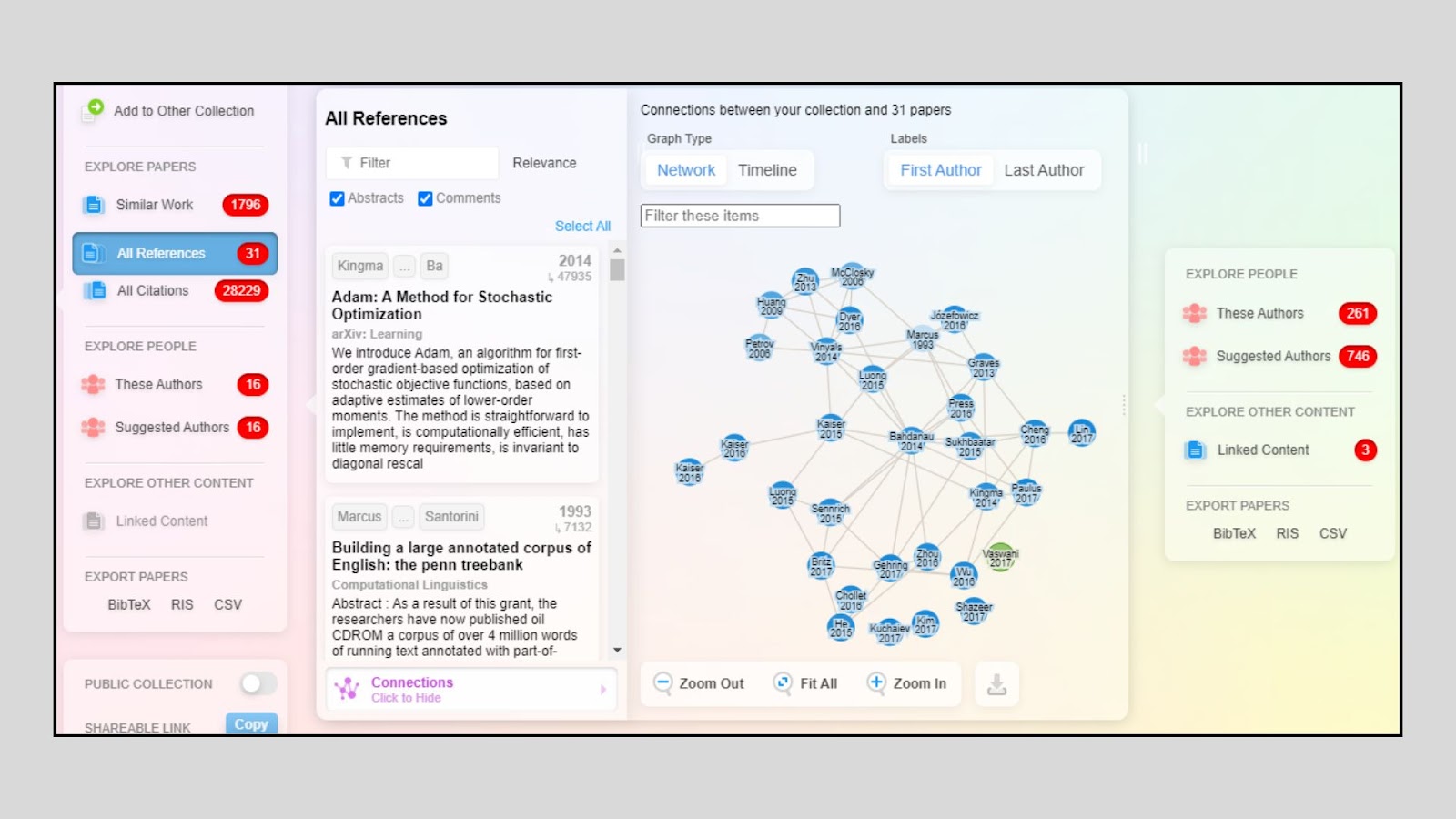
You can save any of these papers into your existing collection or create new collections based on subtopics like “Transformer variants,” “Self-attention use cases,” or “NLP architectures.”
This makes it easy to keep track of your research trail and organize insights for future reading, implementation, or writing.
Step 5: Track updates and receive paper recommendations
Research Rabbit tracks your collections and notifies you when new, relevant papers are published. You can return to your collection anytime and continue expanding or pruning your network.
What I liked
- Super intuitive and visual way to explore related papers
- Helps build a “paper journey” across time and authors
- Notifications help stay up-to-date on a research topic
- You can collaborate with others by sharing your collections
What I disliked
- Not ideal for quick fact-checking or one-time searches
- Doesn’t summarize papers; you need to read the abstracts
- Limited filtering (e.g., can’t always sort by open access or dataset used)
- Requires some manual effort to curate quality collections
Pricing
- 100% Free (as of now): No paid plans — all core features are accessible after signing up
Who should use Research Rabbit?
- Developers exploring related research before building or replicating ML models
- Students working on a thesis or a capstone project
- Academic researchers building or reviewing literature
- Founders validating an idea with supporting evidence
Final Verdict (For Developers)
Research Rabbit is perfect when you’re not just looking for a single paper, but want to explore how research evolves. It’s like a map of academic knowledge that helps you follow citation trails, discover hidden gems, and organize your reading into collections.
Takeaway? Use it to build research workflows, not just find answers, but understand how ideas grow, connect, and develop. It’s one of the best tools to “zoom out” on a research topic.
Read More: 5 Best LLMs for Debugging and Error Detection
When to use them?
| Scenario | Best Tool to Use | Why |
| You need a quick, cited summary of a trending topic | Perplexity AI | It gives real-time answers with sources and follow-up questions |
| You want to break down a technical paper or compare tools | ChatGPT (GPT-4) | You can upload documents, ask questions, and get code or explanations |
| You're writing a research report or thesis | Elicit | It organizes papers in a table with summaries, methods, and comparisons |
| You need a yes/no answer backed by science | Consensus | It simplifies results into clear answers based on real research |
| You want to check if a paper’s claims are trusted | Scite | It shows how other papers cite it—supporting, mentioning, or opposing |
| You’re exploring a new research area or topic network | Research Rabbit | It visualizes paper relationships, co-authors, and citation paths |
Research shouldn’t feel like digging through a maze of tabs and PDFs. As a developer, you need clear answers fast. That’s where AI research tools come in.
They help you find the right information, understand complex topics, and spot useful patterns without wasting hours.
Whether you're learning something new or validating an idea, this guide covers the best AI tools to help you research smarter and build faster.
Let’s make deep research simple and actually useful.
Research faster, build smarter. Join Index.dev to work on global projects where deep thinking and the right tools really matter.
Summary table
| Tool | Best For | Key Features | Limitations | Pricing |
| Perplexity AI | Fast, citation-backed answers | Real-time web search, source links, Focus Mode (Pro), no login needed | Limited filtering, Focus Mode not always available | Free / Pro: $20/month |
| ChatGPT | Deep exploration, explanation, and synthesis | GPT-4, file upload, web browsing, conversation memory | GPT-3.5 lacks features, and no citations without browsing | Free / Plus: $20/mo / Pro: $200/mo |
| Elicit | Academic research and paper comparison | Literature review table, custom columns, semantic summaries | Academic-only focus, less effective on recent or niche papers | Free / Pro: from $10–$65/month |
| Consensus | Fact-checking using real scientific evidence | Yes/No/Depends format, summary of paper agreement, simple UX | No code/contextual insights, limited filtering | Free / Pro: $11.99/month |
| Scite | Validating claims via citation types | Smart Citations (supporting/contrasting), BibTeX export, journal filters | Learning curve, limited access on the free plan | Free (7 days) / Pro: ₹700/month |
| Research Rabbit | Mapping research networks visually | Citation maps, paper timelines, author graphs, and collection tracking | No summaries or citation strength scoring | Free |
What exactly is the deep research we're referring to?
Deep research means digging deep into a topic to understand how it truly works.
As a developer, you don’t just search for quick answers; you explore trusted sources like research papers, technical blogs, and real-world case studies.
You look at how different people solved similar problems, what tools they used, and what results they got. You find patterns, compare ideas, and think critically. It helps you build better software, avoid common mistakes, and make smarter decisions.
Deep research isn't about reading more; it's about learning smarter. It gives you a strong foundation to create, test, and improve your projects with confidence.
What are the types of deep research enabled by AI tools?
1. Source Aggregation and Summarization
AI excels at cutting through noise. Instead of switching between a dozen blogs, docs, and forums, you get the key insights in one summary. This is especially helpful when comparing tools or understanding a concept without wasting time on repetitive or low-quality sources.
2. Literature Review and Citation Analysis
Not all papers are equal. AI tools let you trace how influential a study is, who cited it, whether they agreed, and what research it led to. This context matters when you're relying on academic work to make technical decisions or justify an approach.
3. Qualitative Data Analysis
Unstructured feedback often holds the most value. AI reads thousands of user reviews, GitHub issues, or support chats and distills what users care about most. For developers, this turns vague sentiment into clear action items like bug fixes or feature priorities. Similarly, AI note taker tools can process meeting transcripts, interview recordings, and brainstorming sessions to extract actionable insights.
4. Exploratory Data Discovery
You don’t always know what you’re looking for. Exploratory tools uncover unexpected connections between topics, datasets, or authors, without needing a specific query. They’re useful for spotting trends, gaps, or areas worth diving deeper into when entering a new field.
5. Predictive and Analytical Synthesis
Smart planning needs more than raw data. These tools analyze patterns, timelines, and performance history to suggest what’s likely to work best. Whether it's choosing between architectures or predicting long-term tech adoption, AI can support high-stakes decisions with real evidence.
Explore More: ChatGPT vs Perplexity